
When an item is selected in the Solution Explorer of Visual Studio (2008), it shows up with a nice dark colored back ground which makes it easy to find the item.
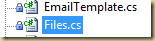
But when the Solution Explorer does not have current focus, then the color used makes it extremely hard to determine which item currently has focus.
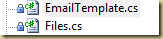
Here is what you need to do to change the back ground color of the selected item – when it is in a window that does not have current focus.
Open up the Window Color and Appearance dialog.
- On Windows 7, Go to “Appearance and Personalization” –> “Personalization” –> “Window Color and Appearance”
- Click on “Advanced appearance settings….”
Under “Item” select “3D Objects” and change the color for “Color 1”
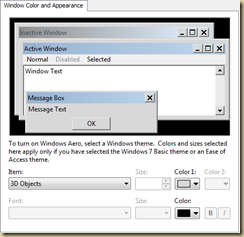
(The original color was RGB = 240,240,240).
That should do it.
Note: This solution does not work for Visual Studio 2010.

No comments:
Post a Comment