Showing posts with label ASP.Net Databases. Show all posts

Saturday, August 14, 2010

ASP.Net–Persistence options–A Review

ASP.Net provides 5 locations to store your application data:

  1. Application
  2. Session
  3. ViewState
  4. Cache
  5. Context

Session and ViewState get used quite a bit by Asp.Net developers. Application and Cache probably get used the next most often and Context is probably the least used by developers. Here is a quick review and basic of these in app storage mechanisms.

Important: there are other storage mechanism also available for your consideration, like: Cookies, QueryStrings, HiddenFields, etc. These are all storage mechanisms available to all web-applications. I am discussing only Asp.net specific options here. Also on the server side – there is the option to store data to databases, etc. Again – this post discusses mechanism for storing short lived data – data that isnt required across application life-times.

Application:

Scope: Available across all sessions, i.e., to the entire application (caveat: it is available to all sessions running on the same server).

Lifetime: Application. Data is lost when the application shuts down.

Considerations: When inserting data – you must do so in a thread safe manner.

MSDN: http://msdn.microsoft.com/en-us/library/ms178594.aspx

Session:

Scope: Available to only the current user session

Lifetime: Session. When the session expires the data is lost. Important to realize that InProc session-state is available only on the server that processed the request. Other types available that persist data to a database or xml, that allow the session state data to be available across servers.

Considerations: Need to be aware of memory load your session data might be putting on your web-server. If sessions are long running and data is large – you potentially run the risk of your application running out of memory.

MSDN: http://msdn.microsoft.com/en-us/library/ms178581.aspx

ViewState:

Scope: Available to only the current user

Lifetime: Page. Provides a mechanism to store information to the page – so that the data is available across multiple requests to the same page.

Considerations: The other options discussed on this page are all server side options. ViewState is a client-side data storage option. Important to be aware that storing data to the view state will increase the size of the page that is sent to the user’s browser (as its stored in a hidden-field on the page). This will lead to longer trip times (server to client and client to server). As data is sent to the user – security is a consideration: data could be viewed by user or could be modified. View State can be encrypted and validated to work around these issues. Never use View State to store anything that should not be viewed by the end-user, even if you are using encryption and validation.

MSDN: http://msdn.microsoft.com/en-us/library/system.web.ui.control.viewstate.aspx

Cache:

Scope: Available to the entire application, i.e., across all sessions

Lifetime: Volatile and non-deterministic. Data removed according to expiration policies set when adding data to Cache or when .Net determines memory is running low for that application.

Considerations: Never assume data that was saved to the cache will be available later. Always check for null value. Cache stores data using weak references – allowing it to discard the data when expiration occurs or when memory loads dictate it.

I love the cache – because it takes on the responsibility of handling timers and when to discard data stored within it. I typically use the session key appended to the key name to store session specific data to the cache – taking advantage of the Cache’s cleanup capabilities. (If you do go down this route, it is important to make use of Session_OnStart and Session_OnEnd events to clean up the cache – so that data is not inadvertently shared between users when session ids are reused). Another option is to use a “UserId” from your database (if you have one), to store user specific data to the Cache – this way you do not have to worry about problems arising from reuse of SessionIds.

Also, a little known fact is that even though the Cache object is found in the System.Web namespace, the Cache object is available for you to use even in your WebForms applications.

MSDN: http://msdn.microsoft.com/en-us/library/system.web.caching.cache.aspx

References:

Asp.Net State Management Options: http://msdn.microsoft.com/en-us/library/z1hkazw7.aspx

Thursday, August 12, 2010

Setting up database enteries for Asp.Net membership in shared hosting scenarios

A good blog post on setting up a Sql-Server database in a shared hosting scenario so that you can use Asp.Net membership: http://misfitgeek.com/blog/aspnet/adding-asp-net-membership-to-your-own-database/

Monday, April 12, 2010

Give me parameterized SQL, or give me death

An old post by Jeff Atwood – but a timeless one that every developer should read over and over again until it becomes second nature.

http://www.codinghorror.com/blog/2005/04/give-me-parameterized-sql-or-give-me-death.html

Also read the sister post “Who needs stored procs, Anyways

Friday, January 08, 2010

Database naming standards

Via NixonCorp Team Blog: http://jerrytech.blogspot.com/2010/01/our-database-naming-conventions.html

Prefixes (all prefixes are lower case):

Example Standard What is it?
tb_Users tb_ prefix Table
UserName Pascal Case Column
up_User_Insert up_ prefix Stored Procedure
v_Users v_ prefix View
fn_UpdateUsers fn_ prefix User Function
syn_Users syn_ prefix SQL Synonym
idx_Users_001 idx_ prefix Index
@userName @ + Camel Case func, proc Parameter
@UserName @ + Pascal Case Local variable
  1. Tables are always plural (tb_Users, never tb_User)
  2. Columns are in Pascal Case (UserId, FirstName)
  3. Primary Keys are single columns whenever possible
  4. Primary Keys are named after the table (UserId)
  5. Primary Keys end with Id (UserId, not Key or Pk)
  6. Foreign Keys end with Fk (UserFk, never Id, Key or Pk)
  7. Stored Procedures never use the sp_ because this is a known SQL Server performance problem
  8. Stored Procedures are named up_NOUN_VERB such as up_User_Insert or up_User_Search or up_User_Delete, not up_Delete_User or up_DeleteUser or up_UserDelete.
  9. Triggers are named tr_TABLE_ACTION such as tb_Users_UpdateSecurity, not tb_UpdateUserSecurity
  10. Index names don’t really matter. But if we want to conform them we use idx_TABLE_TYPE_COLUMNS like idx_Users_Clustered_LastNameFirstName. If the number of columns is too long, then idx_Users_Clustered_001

There are special rules especially for cross reference tables.

  1. Names should include the parent table’s name
  2. Names should include the static term “cross”
  3. Names should include the child table’s name
  4. They always have a primary key called CrossId
  5. Many to One = tb_Groups_cross_User (in all reality, this should never happen – use One to Many).
  6. One to One = tb_User_cross_Group (singular child)
  7. One to Many = tb_User_cross_Groups (plural child)
  8. Many to Many = tb_Users_cross_Groups (all plural)

More Info:
Read my previous post Coding standard – naming of UI elements

Monday, June 08, 2009

PCI Compliance and Web Applications

What do the Payment Card Industry (PCI) compliance terms mean to your web-application?

There are six major categories, broken down to 12 requirements:

    Build and Maintain a Secure Network

    Requirement 1: Install and maintain a firewall configuration to protect cardholder data
    Requirement 2: Do not use vendor-supplied defaults for system passwords and other security parameters

    Protect Cardholder Data

    Requirement 3: Protect stored cardholder data
    Requirement 4: Encrypt transmission of cardholder data across open, public networks

    Maintain a Vulnerability Management Program

    Requirement 5: Use and regularly update anti-virus software
    Requirement 6: Develop and maintain secure systems and applications

    Implement Strong Access Control Measures

    Requirement 7: Restrict access to cardholder data by business need-to-know
    Requirement 8: Assign a unique ID to each person with computer access
    Requirement 9: Restrict physical access to cardholder data

    Regularly Monitor and Test Networks

    Requirement 10: Track and monitor all access to network resources and cardholder data
    Requirement 11: Regularly test security systems and processes

    Maintain an Information Security Policy

    Requirement 12: Maintain a policy that addresses information security

from: https://www.pcisecuritystandards.org/security_standards/pci_dss.shtml

Tuesday, May 26, 2009

Tuesday, May 05, 2009

The Refresh Button and your ASP.Net Form

You have built a ASP.Net web-form which accepts data from the user, which then gets submitted for being appended to a database. But have you wondered what would happen if the user hits the dreaded “Refresh” button of the browser after submitting the web-page?

While tracking down a recent issue, I wondered about the same problem. So I created a set of test pages to check out the issue and figure out a fix.

http://www.aggregatedintelligence.com/Samples/PreventDuplicates/WithRefreshIssue.aspx

Fill in the 2 fields and hit the submit button. Now hit F5 (Refresh) and see what happens.

Every time, you hit the Refresh button, you will find that a new entry gets added to the text box below. This is because, when you hit the Submit button, the browser’s last action was to post the information from the page to the server. The posted data includes the information regarding the submit button event and as well as the information in the 2 fields. On the server, your page handles the button’s click event and adds an entry to the text-box. Now, every time you hit the refresh button on the browser, you are re-posting all the data (field values, button click event, etc.) to the web-page. The web-page does not know that the events it is handling are due to a “Refresh” issued by the browser and handles the events like normal, resulting in multiple entries being added to the text box. This is probably not the behavior you or your users expect from your web-page.

So how do you fix it?

The answer is very simple. Like I said before, the issue stems from the fact that when you press the Submit button, the browser posts data to your web-server and when you hit the “refresh” button, the data that was last sent by the browser gets re-posted to the web-server. All we need to do to fix the issue is to clear the headers in the page and this is extremely simple to do.

After you handle the Submit button’s event, redirect the page back to the same page using the following code:

Response.Redirect(this.Request.Url.ToString(), false);
return;

This will clear all the posted data from the page. When you hit the “Refresh” button, because there is no data to be posted, the button’s click event does not fire and you do not get duplicate items in your text box.

This technique is shown in the following page: http://www.aggregatedintelligence.com/Samples/PreventDuplicates/WithoutRefreshIssue.aspx

Why is all this important?

On pages where you accept user input, you need to know how to handle the case of the user hitting the “Refresh” button on the browser. Otherwise, you can end up with duplicate records.

I also show that the same technique can be used to fix pages which contain multiple buttons that submit data to the web-server. (Example with Multiple Submits)

And if you want to take a look at the code for the example, download it from the link below:

Friday, April 10, 2009

System.InvalidOperationException: The ConnectionString property has not been initialized

Are you seeing the following exception message:

System.InvalidOperationException: The ConnectionString property has not been initialized. at System.Data.SqlClient.SqlConnection.PermissionDemand() at System.Data.SqlClient.SqlConnectionFactory.PermissionDemand(DbConnection outerConnection) at System.Data.ProviderBase.DbConnectionClosed.OpenConnection(DbConnection outerConnection, DbConnectionFactory connectionFactory) at System.Data.SqlClient.SqlConnection.Open() at xxxxxxx in yyyyyyyy

One cause for this error is, if you try and setup a SqlConnection object with a connection string that is empty (null, nadha, nill, nothing…). So test by hard coding the connection string that you are using to create the SqlConnection. If that works – then the way that you are retrieving your connection string (web.config, custom text/xml file, etc) might be having an issue (permissions, file missing, etc).

Wednesday, April 01, 2009

ASP.Net & SqlServer – Displaying binary data from database as images

A frequent requirement for ASP.Net websites is to display image data from a database that is stored as binary data in a table.

One such example is the “Production.ProductPhoto” table in the AdventureWorks database. The table has a ThumbNailPhoto and a LargePhoto column which store images as binary data.

image

So how does one go about displaying this data using ASP.Net server controls?

The first thing you need to know – you cannot provide the binary data directly to any control to display the image.

What you need to do, is to have a separate page that pulls the data from the database and then pushes the data down to the browser as an image. And luckily this is very easy to do.

The following example uses the Production.ProductPhoto and the Production.ProductProductPhoto tables from the AdventureWorks database.

image 

The productId is looked up in the “ProductProductPhoto” table and the “ProductPhotoId” is retrieved. The “ProductPhotoId” is then used on the “ProductPhoto” table to extract the correct record with the product image.

image

Create a web-form page. Call it “DisplayProductImage.aspx”.

Add a label to the page. Set its Text value to “Product ID:”.

Next add a text box to the page. Set its ID to “txtProductID”.

Pull a button from the Toolbox onto the page. (We wont hook up any events to the button. We will use the fact that when the button is clicked – a post-back will automatically occur).

Pull a DetailsView on to the page. In the tasks list, select “New data source”.

image

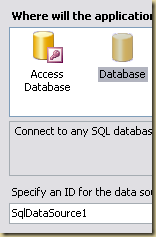
Next, select Database and then click Ok

image

On the next screen point to the AdventureWorks database connection string in your web.config file. (If you dont have one – then you need to create a connection string for it. The simplest method is to create a DataSet using the VS wizard).

image

Choose “Specify a custom SQL Statement” for “How would you like to retrieve data from your database?”

image

Paste the following query as the SQL Statement. (The query gets the ProductPhotoID, using the ProductID as a input parameter):

SELECT Production.ProductPhoto.ThumbNailPhoto, Production.ProductPhoto.LargePhoto, Production.ProductProductPhoto.ProductID FROM Production.ProductPhoto INNER JOIN Production.ProductProductPhoto ON Production.ProductPhoto.ProductPhotoID = Production.ProductProductPhoto.ProductPhotoID WHERE (Production.ProductProductPhoto.ProductID = @ProductID)

On the next screen, you need to specify where the query parameter ProductID will get its value. In our example it is the “txtProductID” control.

image

Click on Finish.

Next, we need to add ImageFields to display the images.

To do this – you need to go to the “Edit Fields” dialog for the DetailsView.

image

Add 2 imagefields to the DetailsView.

image

Set the following values for the first ImageField:

image 

 ProductImage.aspx?ThumbNail=true&ProductID={0}

Set the following values for the second ImageField:

 image

ProductImage.aspx?ThumbNail=false&ProductID={0}

This will create a details view which will display the ProductID, a thumbnail image and a full sized image of the product.

image 

The data-binding for the images, sets up the image source to point to a special page within our website (which we will create next), and passes the productID as a query parameter, as well as tells the page where the data is to be retrieved from – using the parameter “ThumbNail”.

Creating the image.

To display the image from the database we need to: 1. retrieve the binary data, 2. Serialize it to an image 3. pass it down to the browser.

1. Add a new web-form page. Call the page “ProductImage.aspx”

2. In the code behind for the page, add the following code for the Page_Load event.

protected void Page_Load(object sender, EventArgs e)
    {
        //retrieve query params
        if (Request.QueryString["ProductID"] == null)
            return;
        int productID = Convert.ToInt32(Request.QueryString["ProductID"]);
        bool isThumbNail = true;
        if (Request.QueryString["ThumbNail"] != null)
            isThumbNail = Convert.ToBoolean(Request.QueryString["ThumbNail"]);

        //using the productId, retrieve the photoid.
        int photoId = -1;
        byte[] imageData = null;
        using (SqlConnection connection = new SqlConnection(ConfigurationManager.ConnectionStrings["AdventureWorks"].ConnectionString))
        {
            SqlCommand command = new SqlCommand("SELECT ProductID, ProductPhotoID FROM Production.ProductProductPhoto WHERE (ProductID = @ProductID)", connection);
            command.CommandType = System.Data.CommandType.Text;
            command.Parameters.AddWithValue("ProductID", productID);
            connection.Open();
            SqlDataReader sdr = command.ExecuteReader();
            if (sdr.HasRows)
            {
                sdr.Read();
                photoId = Convert.ToInt32(sdr["ProductPhotoID"]);
            }
        }
        if (photoId < 0)
            return;
        //using the photoid get the binary data for the thumbnail and actual image
        using (SqlConnection connection = new SqlConnection(ConfigurationManager.ConnectionStrings["AdventureWorks"].ConnectionString))
        {
            SqlCommand command = new SqlCommand("SELECT Production.ProductPhoto.ThumbNailPhoto, Production.ProductPhoto.LargePhoto from Production.ProductPhoto WHERE (ProductPhotoID = @ProductPhotoID)", connection);
            command.CommandType = System.Data.CommandType.Text;
            command.Parameters.AddWithValue("ProductPhotoID", photoId);
            connection.Open();
            SqlDataReader sdr = command.ExecuteReader();
            if (sdr.HasRows)
            {
                sdr.Read();
                if (isThumbNail)
                    imageData = (byte[])sdr["ThumbNailPhoto"];
                else
                    imageData = (byte[])sdr["LargePhoto"];
            }
        }
        
        //serialize the imagedata to an image and send it back as part of the response stream
        int strippedImageLength = imageData.Length;
        if (strippedImageLength > 0)
        {
            byte[] strippedImageData = new byte[strippedImageLength];
            Array.Copy(imageData, 0, strippedImageData, 0, strippedImageLength);
            //Set the response type to an image and write the data to the response
            Response.ContentType = "image/bmp";
            Response.BinaryWrite(strippedImageData);
        }
    }

This code, sets up the ProductImage.aspx page to retrieve the data from the database and then returns it as an image that is part of response stream.

Testing:

Set the start page to “DisplayProductImage.aspx” (the first one we worked with – which has the controls to specify the product ID and a button to retrieve the image).

Run the sample.

Type 770 as a test product id and click “Get Image”

image

“Get Image” will trigger a post-back. The post-back will make the DataView bind. The ImageList controls will call the “ProductImage.aspx” page with the product ID 770. Depending on which ImageList is data-binding at that  moment, the thumb-nail parameter will either be true or false.

In the Page_Load event of the ProductImage page, the query parameters are retrieved. The product id is then used to query the database and get the binary data for the images. The binary data is then sent back to the browser as an image. The result should look like this:

image 

(Other product Ids to test with – 790, 800, 820)

Monday, March 30, 2009

ASP.Net and Databases – Tip for making databinding faster

Do you set the DataSourceMode property on your DataSources?

image The DataSourceMode property on DataSources (such as SqlDataSource) allows you to specify whether the reading of the data will be performed using a DataReader or a DataSet.

Why does this matter? A DataReader is a forward only reader and hence is faster and requires less memory. On the other hand DataSets are allow you to read, update, insert, delete data and hence require more memory and are slower than DataReaders. Knowing this is important, because if you are loading data into a ComboBox, why use a DataSet, when a DataReader would do?

Remember: The default value for DataSourceMode is DataSet.

<asp:SqlDataSource ID="SqlDataSource1" runat="server" 
            ConnectionString="<%$ ConnectionStrings:AdventureWorks2008ConnectionString %>" 
            DataSourceMode="DataReader" 
            SelectCommand="SELECT ProductCategoryID, Name FROM Production.ProductCategory"></asp:SqlDataSource>

ASP.Net page life-cycle and data-binding

1. The page object is created
2. The page life cycle begins, and the events Page.Init and Page.Load fire.
3. All other control events fire.
4. The data source controls perform any updates. If a row is being updated, the Updating and
Updated events fire. If a row is being inserted, the Inserting and Inserted events fire. If a
row is being deleted, the Deleting and Deleted events fire.
5. The Page.PreRender event fires.
6. The data source controls perform any queries and insert the retrieved data in the linked controls.
The Selecting and Selected events fire at this point.
7. The page is rendered and disposed of.

Remember: Data binding is performed on every postback