Showing posts with label Tools and Utilities. Show all posts

Friday, May 18, 2018

Using CURL for some timing test

curl url -s --write-out "Total Time: %{time_total}  Code: %{http_code} downloadsize: %{size_download}" -o output

eg:

curl https://www.google.com -s --write-out "Total Time: %{time_total}  Code: %{http_code} downloadsize: %{size_download}" -o output

outputs: Total Time: 0.234000  Code: 200 downloadsize: 24744

Thursday, June 29, 2017

Setting up CRM certificate on an environment restored from CRM Online

Download the certificate from your online instance (Settings >> Customizations >> Developer Resources)

image

Install the certificate into the user certificates:

Search for: Manager User Certificates
image

Right click on Personal >> Certificates and choose Import.

Browse and select the certificate you downloaded from CRM online

Right click on the certificate “*.crm.dynamics.com” and choose All Tasks >> Export

image

Choose “Base-64 encoded X.509 (.cer) as the format and click next and export it to a file.

Attach the certificate to CRM.

Open a powershell command window in Admin mode.

Add the CRM powershell snamp in by running: Add-PSSnapin Microsoft.Crm.PowerShell

Next install the certificate by running (replacing the path to the data file with the file from the step where you exported the base-64 file above:

Set-CrmCertificate -certificatetype appfabricissuer -StoreName My -StoreLocation LocalMachine -StoreFindType FindBySubjectDistinguishedName -DataFile C:\base64-crm.dynamics.com.cer

Finally validate that it worked by running: Get-CrmCertificate

More info:

https://msdn.microsoft.com/en-us/library/gg328249.aspx

Monday, June 26, 2017

DupFinder from JetBrains–XSLT

Jetbrains has a cool tool to find duplicates in your code-base called DupFinder.exe

Here is a slightly modified xsl, that also outputs the line numbers

<?xml version="1.0" encoding="utf-8"?>
<xsl:stylesheet xmlns:xsl="http://www.w3.org/1999/XSL/Transform" version="1.0">
     <xsl:output method="html" indent="yes" />
     <xsl:template match="/">
         <html>
             <body>
                 <h1>Statistics</h1>
                 <p>Total codebase size: <xsl:value-of select="//CodebaseCost"/></p>
                 <p>Code to analyze: <xsl:value-of select="//TotalDuplicatesCost"/></p>
                 <p>Total size of duplicated fragments: <xsl:value-of select="//TotalFragmentsCost" /></p>
                 <h1>Detected Duplicates</h1>
                 <xsl:for-each select="//Duplicates/Duplicate">
                     <h2>Duplicated Code. Cost: <xsl:value-of  select="@Cost"/></h2>
                     <h3>Duplicated Fragments:</h3>
                     <xsl:for-each select="Fragment">
                         <xsl:variable name="i" select="position()"/>
                         <p>Fragment <xsl:value-of select="$i"/>  in file <xsl:value-of select="FileName"/></p>
                         <p>Line Range Start: <xsl:value-of select="LineRange/@Start"/> End: <xsl:value-of select="LineRange/@End"/></p>
                         <pre><xsl:value-of select="Text"/></pre>
                         <br />
                     </xsl:for-each>
                 </xsl:for-each>
             </body>
         </html>
     </xsl:template>
</xsl:stylesheet>

Thursday, March 30, 2017

Useful bookmarklets for working with CRM

Here are some useful bookmarkets that I have collected for working with Dyanmics CRM (tested with CRM 2016)

  1. Download the files from: https://github.com/rajrao/CRM-Tools (you need just the folder CrmDev).
  2. Open the following location via Windows Explorer: %userprofile%\Favorites\Links
  3. Copy the folder CrmDev into the folder opened in (2).
  4. You will now have access to the bookmarks in IE.

Alternatively, you can use the following html and use the import functionality in your favorite browser to get these links.
https://rawgit.com/rajrao/CRM-Tools/master/Bookmarklets/bookmark.htm (source: https://github.com/rajrao/CRM-Tools/blob/master/Bookmarklets/bookmark.htm)

Friday, August 05, 2016

SSMS and storing templates in a different location

In Sql Server Management Studio (SSMS), there doesnt seem to be a way to store the templates in a location other than the default (which is: %appData%\Microsoft\SQL Server Management Studio\12.0\Templates\Sql). I use this feature heavily, but everytime I get a new computer, I end up loosing them templates that I have collected over time.

I found a simple solution around this and it uses the “mklink” command.

Steps:

1. Open a command prompt and CD to: “%appData%\Microsoft\SQL Server Management Studio\12.0\Templates\Sql”

2. Run the command:

mklink /D MyTemplates C:\OneDrive\SqlTemplates

The above command creates a link from within the folder that SSMS looks for templates to a folder on c drive (I am mapping it to folder thats backed up by one-drive).

3. Restart SSMS, and voila, you should see this folder in your templates explorer.

Tuesday, June 14, 2016

Fiddler and vshub requests

If you debug a web-site project using Visual Studio 2015 or higher, you may see a ton of requests to the URL /vshub/ in fiddler. These requests are used by Visual Studio and the VsHub process to communicate with each other and are not actually related to your website.

So what can you do?

1. You can setup a filter to filter out the /vshub/ uris.

2. I prefer custom rule that I can turn on or off and here is what it looks like:

Edit the customRules.js file (Rules > Customize Rules).

Add the following lines to class Handler

public static RulesOption("Display VSHUB Requests")
var m_bShowVshubRequests: boolean = false;

In “OnBeforeRequest” add the following code:

static function OnBeforeRequest(oSession: Session) {
      
        if (!m_bShowVshubRequests && oSession.uriContains("/vshub/"))
        {
            oSession.Ignore(); //oSession["ui-hide"] = "true";
        }

And now by default it will never show and if you want to look at it, you can do so by enabling it at:

image

Monday, September 28, 2015

Importing Windows Event Log into SQL Server

LogParser is your friend: http://www.microsoft.com/en-us/download/details.aspx?id=24659

Here is a sample command to import the data into SQL Server:

LogParser -i:EVT "SELECT * into prodEvents FROM  c:\temp\prod.evtx" -o:SQL -server:sqlServerName -driver:"SQL Server" -database:testDb -createtable:ON  -cleartable:ON -transactionRowCount:-1  -maxstrfieldlen:8000

note: use -username:test -password:test to specify username and password if you need to.
note: I cant seem to find a way around the 8000 character limit in LogParser. So it always truncates at 8000 characters :(

The table definition is:

CREATE TABLE [dbo].[prodEvents](
    [EventLog] [varchar](8000) NULL,
    [RecordNumber] [int] NULL,
    [TimeGenerated] [datetime] NULL,
    [TimeWritten] [datetime] NULL,
    [EventID] [int] NULL,
    [EventType] [int] NULL,
    [EventTypeName] [varchar](8000) NULL,
    [EventCategory] [int] NULL,
    [EventCategoryName] [varchar](8000) NULL,
    [SourceName] [varchar](8000) NULL,
    [Strings] [varchar](8000) NULL,
    [ComputerName] [varchar](8000) NULL,
    [SID] [varchar](8000) NULL,
    [Message] [varchar](8000) NULL,
    [Data] [varchar](8000) NULL
) ON [PRIMARY]

Keep in mind that you can run many SQL like queries directly against the EVT file locally on your machine without importing the data into a table.

Other useful queries:

logparser.exe -i:evt "select * from c:\temp\prod.evtx where timegenerated > '2015-09-01 00:00:00'"

More info:

Useful commands and tips: (for ASP.net, but useful even for Event Logs) https://support.microsoft.com/en-us/kb/910447

Tuesday, December 10, 2013

Custom Rules in Fiddler

I needed to setup a filter in Fiddler so that I could view only JSON requests being made from my application. The default filter doesn’t allow for viewing only JSON requests. But luckily Fidller allows you to setup custom rules. Here is what I did:

Within the class “Handlers” add the following lines of code:

public static RulesOption("Display Only &Json Requests")
var m_bShowOnlyJsonRequests: boolean = false;

The above lines will add a Menu option under rules, that will easily allow you to turn on or off the JSON filtering.
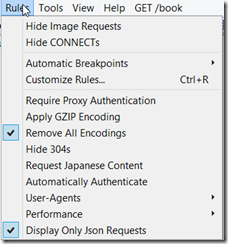
image

Next, within the method: static function OnBeforeRequest(oSession: Session), add the following lines of code:

if (m_bShowOnlyJsonRequests && oSession.oRequest["Content-Type"] != "application/json"){
                oSession["ui-hide"] = "true";
          }

The above lines of code allow filters to display only those sessions that have a content-type header set to “application/json”.

As simple as that!

Notes:

1. The biggest problem that I have found is that there is hardly any documentation regarding the methods and properties available within the script file or off the oSession object (which is of type Session).

2. I think the script is based of JScript. I just wrote my code to resemble C# and it worked for my simple filter.

3. Samples from FiddlerBook site: http://fiddlerbook.com/Fiddler/dev/ScriptSamples.asp

4. Fiddler Script Editor is a pretty good tool that can help writing complex rules (it provides some documentation, though it wasn’t always helpful). http://fiddler2.com/fiddlerscript-editor

5. More Samples: http://fiddler2.com/documentation/KnowledgeBase/FiddlerScript/ModifyRequestOrResponse

6. Session object properties/flags: http://fiddler2.com/documentation/KnowledgeBase/SessionFlags

Thursday, February 07, 2013

Syncfusion Succinctly Series of ebooks

I have been enjoying the SyncFusion suite of products for about 4 months now. Apart from a stellar set of UI tools, what I have liked about Syncfusion is the constant communication that they provide the developer community. One example of this is the Succintly series of e-books that they release periodically.

You can check out the list of books that they have at: http://www.syncfusion.com/resources/techportal

I found that the jQuery and Javascript books were useful for me as refreshers when I was getting back into Asp.Net MVC programming after spending a while in classic Asp.Net and Silverlight. In addition, I had provided the book on data-structures to a junior developer at work and he liked it very much (and actually noted that it better explained some concepts than his teacher did). I am also interested in looking at the books on Objective-C and GIS.

Just about the only thing I hate about the succintly series is that I need to enter my contact information each time I get download a book from the series. (especially since I have already logged into the site).

Oh! and while you are on their site, get their Metro Studio product for free. It’s the best free resource for metro style icons.

Disclaimer: I received a free copy of Syncfusion’s tools as a door prize at the Denver Visual Studio user group meeting and Syncfusion is also providing me a small cash compensation for this post. But, none of that influenced the comments in this post. I meant to post this as a resource long before I was contacted by Syncfusion.

Monday, December 31, 2012

Sql Server Schema Comparision tool: Open DBDiff

Came across a nice open source tool that allows you to perform schema compares on Sql-Server. I liked it and wanted to share it!

Link: http://opendbiff.codeplex.com/

Description from the codeplex site:

Open DBDiff is an open source database schema comparison tool for SQL Server 2005/2008.
It reports differences between two database schemas and provides a synchronization script to upgrade a database from one to the other.

Screen1.jpg

Monday, September 17, 2012

NotePad++, Regular Expressions and Replacement using found text

Scenario:

You have the following text and you want to copy the values in old to new

<UserMapping old="abc\dfs" new="" />
<UserMapping old="abc\adfad" new="" />
<UserMapping old="abc\sfsafsd" new="" />
<UserMapping old="abc\jdjfgg" new="" />

First you need to figure out the regex to match what you want. Here is what I have:

old="([A-Za-z\\]+)".*$

What you need to notice is that the part of the string that I want to match is inside parenthesis ( () ). This allows us to use the value in the replacement. The regex will match starting from old and end at the end of line. During the match a group will be created from whatever is in the parenthesis, in this case it will include all alphabets (upper and lower case), as well as the slash.

For the replacement, we will use the following string:

old="\1" new="\1" />

Here, notice that I use \1 for the old and new. The matched group value will be used for the old and new values.

Friday, September 14, 2012

TopShelf–Framework for writing Windows Services

imageTopShelf is a .Net framework that makes it extremely simple to write Windows Services.

A simple example from their documentation shows just how easy it is to create a Windows Service from a Console based project:


public class TownCrier
{
    readonly Timer _timer;
    public TownCrier()
    {
        _timer = new Timer(1000) {AutoReset = true};
        _timer.Elapsed += (sender, eventArgs) => Console.WriteLine("It is {0} an all is well", DateTime.Now);
    }
    public void Start() { _timer.Start(); }
    public void Stop() { _timer.Stop(); }
}

public class Program
{
    public static void Main()
    {
        HostFactory.Run(x =>                                 
        {
            x.Service<TownCrier>(s =>                        
            {
               s.ConstructUsing(name=> new TownCrier());     
               s.WhenStarted(tc => tc.Start());              
               s.WhenStopped(tc => tc.Stop());               
            });
            x.RunAsLocalSystem();                            

            x.SetDescription("Sample Topshelf Host");        
            x.SetDisplayName("Stuff");                       
            x.SetServiceName("stuff");                       
        });                                                  
    }
}

Saturday, September 08, 2012

Windows 7 USB/DVD download tool fails to copy files

I was trying to create a bootable USB with Windows 8 using the “Windows 7 USB/DVD download tool”. It kept failing with a message that it was unable to copy the files. (I was using a 16gb USB stick).

After some searching, I found that if you make the USB stick bootable manually, then you can use the tool and it copies all the files successfully.

Here are the steps:

Open a command prompt window in administrator mode.

Run the following commands

diskpart
list disk
select disk #
(Here replace # with the disk number. Be careful to select the correct disk number, else you may end up loosing all your data).
clean
create partition primary
select partition 1
active
format quick fs=fat32
assign
exit
Now re-run the “Windows 7 USB/DVD download tool” and you should be able to successfully create a Windows 8 installation USB stick.

Wednesday, August 08, 2012

Migrate Reporting Services to another machine–Reporting Services Scripter

Came across this nifty little tool called “Reporting Services Scripter” which can be used to migrate RDLs to a different machine. In addition, it can also move other settings like schedules, etc. Another cool feature is that you can use it to migrate RDLs from a 2005 machine to a 2008 machine.

Download it from: http://www.sqldbatips.com/showarticle.asp?ID=62

Saturday, July 21, 2012

Location of VPN settings in Windows 7 and Windows 8

I needed to copy the VPN settings from my Windows 7 machine to my test Windows 8 machine and wanted to figure out where the settings are stored. Here is the location:

%appdata%\Microsoft\Network\Connections\Pbk

In that folder you will find a file called “rasphone.pbk”. You can copy that file out and double clicking it, will open the “Network Connections” dialog and you will find all your VPN connections in that dialog!

Saturday, July 07, 2012

Rotating videos (specifically MP4)

I had taken a bunch of videos using my Nokia 800 and they were all great. Unfortunately, once I downloaded them to my computer, I realized I took them all while holding the phone upside down! And in my quest for free software that could rotate a MP4 video file, I downloaded quite a few tools and most of them turned up short and were filled with crap load of crapware!

Finally I came across “Freemake Video Convertor”. Now, even this software came with a bunch of software that it wanted to install on my computer. But they at least give you an option to opt out. Also, you can donate to their company if you end up using their software and like it.

You can download Freemake Video Convertor from: http://www.freemake.com/downloads/

Some other nice features of this software:

Convert videos from a variety of formats to a variety of formats (output: Avi, MP4, Wmv, Dvd, etc).

Also, the software makes it easy to replicate the quality settings of the input file.

You can also crop the video.

Friday, April 13, 2012

Tools list 2012

I got a new computer at work and had to reinstall a bunch of software. Here is the list I made along the way.

General tools

  1. Chrome: http://www.google.com/chrome/
  2. GreenShot (Screen capture tool): http://www.getgreenshot.org/
  3. NotePad++ (replacement for notepad): http://notepad-plus-plus.org/
  4. Windows Live Writer: http://writer.live/com/
  5. Paint.Net (replacement for Paint): http://www.dotpdn.com/downloads/pdn.html
  6. Fences (Desktop management software): http://www.stardock.com/products/fences/
  7. Spotify (music!): http://www.spotify.com
  8. DisplayFusion (multiple monitor enhancements): http://www.displayfusion.com/
  9. TeraCopy (enhanced file copy): http://codesector.com/teracopy
  10. 7-Zip (archive file tool): http://www.7-zip.org/

Developer tools

  1. Visual Studio 2012 (msdn)
  2. NuGet: http://www.nuget.org/
  3. LinqPad: http://www.linqpad.net/
  4. Fiddler: http://www.fiddler2.com/
  5. WinMerge: http://winmerge.org/
  6. SoapUI: http://soapui.org/
  7. WCFStorm: http://www.wcfstorm.com/
  8. PowerGui: http://powergui.org/
  9. Sql Server (msdn)
  10. SqlComplete Express/Free: http://devart.com/dbforge/sql/sqlcomplete
  11. SSMS Tools: http://www.ssmstoolspack.com/download
  12. Balsamiq (Screen mock-ups): http://www.balsamiq.com/
  13. Hypermodel (UML modeling tool – great to visualize XSDs): http://www.xmlmodeling.com/hypermodel
  14. Oracle DataModeler: http://www.oracle.com/technetwork/developer-tools/datamodeler/overview/index.html
  15. Team Foundation Kicks: http://www.attrice.info/cm/tfs/
  16. Team Foundation Power Tools 2011: http://visualstudiogallery.msdn.microsoft.com/c255a1e4-04ba-4f68-8f4e-cd473d6b971f
  17. XML Notepad: http://www.microsoft.com/download/en/details.aspx?id=7973
  18. Expresso Regular Expression development tool: http://www.ultrapico.com/Expresso.htm

SDKs and such:

  1. Microsoft SDK for Windows 7 and .Net 4: http://www.microsoft.com/download/en/details.aspx?id=8279
  2. Silverlight SDK: (4.0): http://www.microsoft.com/download/en/details.aspx?id=7335
  3. Enterprise Library (5.0): http://msdn.microsoft.com/en-us/library/ff632023.aspx
  4. Prism: http://compositewpf.codeplex.com/

System tools:

  1. SysInternals Suite (awesome set of sys tools): http://technet.microsoft.com/en-us/sysinternals/bb842062
  2. Oracle VirtualBox (Virtual PC): https://www.virtualbox.org/
  3. Remote Desktop Connection Manager (manage multiple remote desktop connections): http://www.microsoft.com/download/en/details.aspx?displaylang=en&id=21101
  4. Virtual Clone Drive (mount ISO files): http://www.slysoft.com/en/virtual-clonedrive.html
  5. FileZilla FTP Client: http://filezilla-project.org/
  6. WinDirStat (graphically view disk space usage): http://windirstat.info/

Saturday, April 07, 2012

Smtp4dev–SMTP server for development

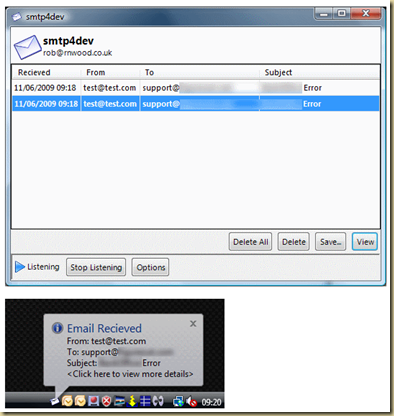
Came across “Smtp4dev” a CodePlex project that runs a local service that acts as an SMTP server. Extremely useful for testing sending of email messages (especially when you don’t have an SMTP server available for such testing).

Check it out at: http://smtp4dev.codeplex.com/

image

Sunday, January 29, 2012

Free HDR software for Windows

I was looking for free software that would run on Windows that would aid in creating HDR images.

After about 5 minutes of searching I came across these 2:

1. Luminance HDR (qtpfsgui) and

2. Picturenaut

I am new to HDR photography, so I wasn’t very sure about all the different options in the software. But I found it a lot more easier to create a cool looking HDR image using Luminance than with Picturenaut.

Here are the input images that I used (found via a Bing search for HDR source images)

hdr01 hdr02 hdr03

-2

0

+2

This was the resulting image using Luminance:

hdr04

More to follow, once I learn a little more about the 2 softwares and get a few sample source images of my own.

Monday, January 16, 2012

Windows Firewall–Determining why you arent able to connect to a machine

Recently I was having trouble connecting to a Data Protection Manager server from a remote machine using power-shell cmdlets. I knew I had everything properly configured with DPM, and so I knew it was probably Windows Firewall that was blocking access to the computer.

What I needed was a log of what was being blocked and here is how I was able to turn on logging on the machine (a Windows 2008 server).

Under “Administrative Tools” select “Windows Firewall with Advanced Security”

image

Click on the topmost node: “Windows Firewall with Advanced Security on Local Computer”

image

Select “Windows Firewall Properties”

image

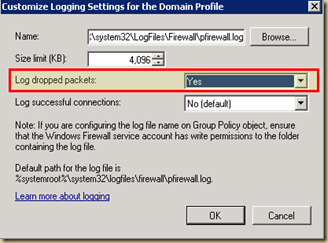
In my case I needed logging turned on for my Domain profile, so on the Domain profile tab, I clicked on the Customize button in the logging section and turn on logging of dropped packets:

image image

The log file is by default created at: “%systemroot%\system32\LogFiles\Firewall\pfirewall.log”

If you look at the log file you will find out the protocol that the remote machine is using to connect and the port. Depending on your specific situation you will have to add an incoming rule (or outgoing rule) to allow the appropriate connections through.