Showing posts with label DotNetNuke. Show all posts

Saturday, September 18, 2010

Asp.Net Cryptographic Oracle Padding (COP) Vulnerability

On September 17, 2010, Microsoft issued an important bulletin regarding a major vulnerability that exists in Asp.Net that can allow a hacker to decrypt and encrypt data used by the Asp.Net application (data such as what is typically stored in the ViewState).

First off, watch this video of an attack run against a DotNetNuke Asp.Net web-site and see the level to which an attacker can gain access to the site: (super user, ability to upload modules and files, ability to run commands and ability to download files once the attack was successful and the cryptographic keys were extracted).

More information:

MS bulletin: Microsoft Security Advisory (2416728)

  • Called the "Cryptographic Oracle Padding"  (COP) or sometimes just the “Padding Oracle” vulnerability. (I like COP better!)
  • Exists in many web-platforms (asp.net, ruby on rails, etc). It looks like it exploits the fact that some web-platforms return different error messages depending on the type of errors in the encrypted text. By modifying the encrypted information and sending it repeatedly to the server the hacker can get enough information to be able to begin decrypting and encrypting data.
  • Some other systems that are vulnerable:
    JSF implementations such as: Apache MyFaces and SUN Mojarra.
    Ruby on Rails
    OWASP ESAPI for Java (up to version 2.0 RC2)
    Video of an attack on a website hosted using Apache (created by Netifera): http://www.youtube.com/watch?v=euujmKDxmC4
  • Most developers follow the best practice of never storing sensitive information in the view-state, but sometimes people end up using the view-state to store sensitive information, because they think it is secure as it is encrypted. In this case, sensitive information may get compromised.
  • Best practice: never pass sensitive information to a client if the client has no use for it - which normally makes the ViewState ineligible for storing secure data. Also, never store security related information in the ViewState (eg: user access level, etc.)
  • Microsoft has provided a basic vb script that allows you to quickly determine which web-sites might be vulnerable.
  • Shutting down the vulnerability is as simple as making sure the server does not provide error specific information and uses a single error page for all errors. (In addition, the single error page can use a random delay to make it even harder to exploit cryptographic vulnerabilities – there is an old one where one could use the time taken to respond to a request to slowly glean more information into the cryptographic keys). (Enable custom errors and use a single error page for all errors)

As the paper by concludes by paraphrasing Nate Lawson, so do I, as the thoughts are important:

If you find yourself needing to implement crypto, it’s likely you
can avoid it by thinking about the situation differently. For example, many web developers get seduced into designing their own crypto as a way to push state to the client instead of managing it on the server. This opens up a much wider attack surface on the server application since now every part of that blob needs to be considered malicious. As the saying goes, "... now you have two problems."

The reason all this is so hard is that crypto is fundamentally unsafe. People hear that crypto is strong and confuse that with safe. Crypto can indeed be very strong but is extremely unsafe.

More technical info and background on the vulnerability is available from Microsoft at this blog-post: http://blogs.technet.com/b/srd/archive/2010/09/17/understanding-the-asp-net-vulnerability.aspx

Information about the exploit can be found at the Netifera (I believe they are the guys who found the vulnerability): http://netifera.com/research/

Also, while at NetiFera read their paper: Practical Padding Oracle Attacks.


More videos of attacks against the COP vulnerability: http://www.youtube.com/results?search_query=Padding+oracle+attack&aq=f

A paper describing the attack in more detail:
A.K.L. Yau, K.G. Paterson and C.J. Mitchell, Padding oracle attacks on CBC-mode encryption with random and secret IVs. In H. Gilbert and H. Handschuh (eds.), FSE 2005, Lecture Notes in Computer Science Vol. 3557, pp. 299-319, Springer, 2005.

Wednesday, May 26, 2010

C# version of DotNetNuke Released

The first ever version of DotNetNuke in C# has been released today (http://dotnetnuke.codeplex.com/releases/view/45478)

Important – this is an unsupported technology preview.

More info:  DotNetNuke source in C#. Yeah, Really.

Tuesday, March 30, 2010

DenDNN – Do you know about the Denver DNN User Group?

The Denver DotNetNuke group meets about once every two months and the next meeting should be around mid May.

For more information: http://denver.dnnug.com/

David Ferreira is the current organizer of this group.

Tuesday, February 23, 2010

DotNetNuke Zero Day Vulnerability (semi-colon bug)

There is a major security loop hole in DotNetNuke versions 4.9.2 and below where DNN will allow an unauthorized user to upload almost any file onto the server. This loop hole combined with the IIS 5/6 zero day multiple extension exploit can allow a hacker complete access to your website.So if you are a DNN version that is not 4.9.4 and up – read on as this is huge hole in your website.
The DNN Issue:
If you browse to the following sub-folder on your DNN site “Providers/HtmlEditorProviders/Fck/fcklinkgallery.aspx”, you will see a page that looks like this:
 image
The above page on its own is not too bad. But if you now paste the following javascript code into the address bar and hit enter: “javascript:__doPostBack('ctlURL$cmdUpload','')” you will see the following browse dialog which will allow you to upload almost any file onto the website (restricted to the list of files allowed by FCKEditor – typically images, documents, etc).
image
The above hack will typically lead to hackers dropping small txt files that have some kind of a notice saying that your website has been hacked!
image
It is hard to do anything substantial with this hack alone.
But wait there is more…..
The IIS Issue:
On December 25th of 2009, an “Ethical” hacker found a vulnerability in IIS 5 and IIS 6 called the “semi-colon” bug or the “multiple extensions IIS/ASP bug”. Read More.
The semi-colon bug allows any file that has .asp in the file name to execute as an ASP file. This bug occurs in all versions of IIS 6 and prior. This means that a file named “innocusFile.asp;.jpg” will be executed like an ASP file.
The big scary picture:
The 2 bugs on their own were bad, but it still would be hard for anything bad to happen. But together – they open up a can of worms that is going to make everyone in your organization pulling every fire alarm in the building. Here is the big picture:
1. Hacker fabricates an ASP file that uses COM objects such as the FileSystemObject to get complete access to your computer.
2. Hacker names the asp file as “myHack.asp;.jpg”.
3. Hacker navigates to the “Providers/HtmlEditorProviders/Fck/fcklinkgallery.aspx” file in his browser and uses the DNN loop hole to upload his myHack.asp;.jpg file. DNN complies because it thinks it is a simple jpg file. This is because DNN looks only at the last extension it finds in a file name.
4. The file uploads to the DNN website to the folder (WITHHELD – to protect unprotected DNN sites).
5. The hacker browses to the file that he uploaded. The file is delivered to the ASP processing engine by IIS and a page that opens up the entire computer to the hacker is displayed. This is because IIS has been coded such that it recognizes a file type based on its extension even if the extension is not the last part of the file name!!
6. The hacker uses his ASP page to get full control of your website (and I mean full control – all disk drives, connection strings, databases, registy, etc.). Nothing is safe after this.
Here is a sample ASP file called the “Smart Shell”, that basically shows the capabilities that an hacker can get over your website: (This kind of an ASP file is also called the 3fexe ASP hack).
image
How to mitigate:
Because there is no known fix, there are only ways to mitigate this attack (and hence it is a zero-day hack).
1. Rename the fcklinkgallery.aspx file
As fcklinkgallery.aspx is the entry point for this hack attack, the first thing to do is to rename this file. I suggest using a random file name – like a guid. After you rename the file, you will need to update the “LinksGalleryPath” setting in your config file. This will be found in the <dotnetnuke><htmlEditor><providers><add name="FckHtmlEditorProvider"> section. Just look for “LinksGalleryPath” and update the value to the newly named file name.
If the hacker cannot browse to the fcklinkgallery.aspx file, he will not be able to upload a ASP file onto your DNN site.
(Update: 03-30-2010) please note: Gabe has included an extra step that needs to be taken to get the link editor to work after renaming it. Please see the comments below. Basically you need to also rename the  "\Providers\HtmlEditorProviders\Fck\App_LocalResources\fcklinkgallery.aspx.resx" to match the renamed fckLinkGallery file.)

2. Remove Execute permission on the Portals folder of your DNN site.
The sub-folder “Portals” in your DNN site typically does not need to be able to run ASP files or any other files. So remove “Execute” permissions on that folder.
Open up IIS.
Expand the website node for your DNN site.
Select the Portals node in the explorer view on the left.
Right click on the Portals node and open the Properties dialog.
Chose the Directory Node.
Set Execute Permissions to “None”.

3. Remove access to FileSystemObject.
This falls into the excessively precautious as it is not really required for you to do. An important note: Do not do this if you know that you have some ASP apps on your site and if those ASP apps use FileSystemObject – you might end up hosing those apps.
There are 2 ways to do this: Remove access to this COM object from the security principal used to run your IIS website (typically ASPNET) or to completely unregister the dll.
1. Registry access:
Open registry editor.
Browse to “HKEY_CLASSES_ROOT\Scripting.FileSystemObject”, right click and under permissions deny access to the ASPNET user.
2. Completely disable FileSystemObject
Run regsvr32 scrrun.dll .u in the C:\windows\System32 folder.
Remember – step 3 is really not required to be done.

The only Fix:

The only “true” fix is to upgrade to IIS 7 or higher and a DNN version of 4.9.4 or higher.
Notes:
Securing IIS 6.0:
http://technet.microsoft.com/en-us/library/cc875829.aspx
One way hacking (which is what the above type of hack is known as):
http://www.net-square.com/papers/one_way/one_way.html
Restricting information available to anonymous users:
http://support.microsoft.com/kb/143474
DNN LinkGallery Remote File Upload without Extension:
http://securityreason.com/exploitalert/6234
DNN Failure to revalidate file and folder permissions correctly for uploads:
http://www.dotnetnuke.com/News/SecurityPolicy/SecurityBulletinno17/tabid/1162/Default.aspx
IIS Security Vulnerability and DNN
http://www.dotnetnuke.com/Community/Forums/tabid/795/forumid/108/postid/347394/scope/posts/Default.aspx

Wednesday, February 17, 2010

DNN Redirect Loop

I was setting up a local dev edition of our DNN site and I went through the usual cycle:

1. Copy site to local machine

2. Set the permissions on the folder

3. Create a website in IIS

4. Copy the database to the local SQLServer Express instance

5. Update the Portal Alias table to point to the localhost

6. Update web.config’s connection strings and SiteSQLServer settings as well as the “SecureDomains”, “RedirectUrl’, and “DisplayServer” to point to the localhost.

7. Test

Hmmph!

The homepage was ending up in an infinite redirect loop (IE does not complain and just keeps on going in the loop. Chrome is smarter about this and complains and stops with an error page).

Weird thing was that I could hit a page alright if I had the correct tabid. But I could not just go “http://localhost/”

I checked the usual suspects – the PortalAlias table and also made sure that none of the entries ended with a “/” – all that was fine.

Finally found out the issue was occuring because the RedirectUrl setting in the web.config file had a trailing “/” (http://localhost/"). DNN does not like that!

Tuesday, February 16, 2010

Wednesday, January 27, 2010

Setting up a SQL Server database for use with DNN

I always forget the correct set of settings (especially user permissions) for the database when I am trying to throw up a quick DNN site. So I finally decided to script the database creation process.

The following 4 scripts will:

  1. Create a login called DNNUSER
  2. Create the database
  3. Add a user called DNNUSER – attached to the login DNNUSER.
  4. Will provide the user DNNUSER with the following roles:
    1. db_datawriter
    2. db_ddladmin
    3. db_securityadmin
    4. db_datareader

1. Create login DNNUSER

USE [master]
GO
CREATE LOGIN [DNNUSER] WITH PASSWORD=N'aSimplePassword', DEFAULT_DATABASE=[master], CHECK_EXPIRATION=OFF, CHECK_POLICY=OFF
GO

2. Create the database (change the name and paths to what you need)

CREATE DATABASE [DNN5] ON  PRIMARY 
( NAME = N'DNN5', FILENAME = N'c:\Program Files\Microsoft SQL Server\MSSQL.1\MSSQL\DATA\DNN5.mdf' , SIZE = 2048KB , FILEGROWTH = 1024KB )
 LOG ON 
( NAME = N'DNN5_log', FILENAME = N'c:\Program Files\Microsoft SQL Server\MSSQL.1\MSSQL\DATA\DNN5_log.ldf' , SIZE = 1024KB , FILEGROWTH = 10%)
GO
EXEC dbo.sp_dbcmptlevel @dbname=N'DNN5', @new_cmptlevel=90
GO
ALTER DATABASE [DNN5] SET ANSI_NULL_DEFAULT OFF 
GO
ALTER DATABASE [DNN5] SET ANSI_NULLS OFF 
GO
ALTER DATABASE [DNN5] SET ANSI_PADDING OFF 
GO
ALTER DATABASE [DNN5] SET ANSI_WARNINGS OFF 
GO
ALTER DATABASE [DNN5] SET ARITHABORT OFF 
GO
ALTER DATABASE [DNN5] SET AUTO_CLOSE OFF 
GO
ALTER DATABASE [DNN5] SET AUTO_CREATE_STATISTICS ON 
GO
ALTER DATABASE [DNN5] SET AUTO_SHRINK OFF 
GO
ALTER DATABASE [DNN5] SET AUTO_UPDATE_STATISTICS ON 
GO
ALTER DATABASE [DNN5] SET CURSOR_CLOSE_ON_COMMIT OFF 
GO
ALTER DATABASE [DNN5] SET CURSOR_DEFAULT  GLOBAL 
GO
ALTER DATABASE [DNN5] SET CONCAT_NULL_YIELDS_NULL OFF 
GO
ALTER DATABASE [DNN5] SET NUMERIC_ROUNDABORT OFF 
GO
ALTER DATABASE [DNN5] SET QUOTED_IDENTIFIER OFF 
GO
ALTER DATABASE [DNN5] SET RECURSIVE_TRIGGERS OFF 
GO
ALTER DATABASE [DNN5] SET  DISABLE_BROKER 
GO
ALTER DATABASE [DNN5] SET AUTO_UPDATE_STATISTICS_ASYNC OFF 
GO
ALTER DATABASE [DNN5] SET DATE_CORRELATION_OPTIMIZATION OFF 
GO
ALTER DATABASE [DNN5] SET PARAMETERIZATION SIMPLE 
GO
ALTER DATABASE [DNN5] SET  READ_WRITE 
GO
ALTER DATABASE [DNN5] SET RECOVERY SIMPLE 
GO
ALTER DATABASE [DNN5] SET  MULTI_USER 
GO
ALTER DATABASE [DNN5] SET PAGE_VERIFY CHECKSUM  
GO
USE [DNN5]
GO
IF NOT EXISTS (SELECT name FROM sys.filegroups WHERE is_default=1 AND name = N'PRIMARY') ALTER DATABASE [DNN5] MODIFY FILEGROUP [PRIMARY] DEFAULT
GO

3. Create a DNNUSER user and add the user to the database with the appropriate roles

USE [DNN5]
GO
CREATE USER [DNNUSER] FOR LOGIN [DNNUSER]
GO
USE [DNN5]
GO
EXEC sp_addrolemember N'db_datawriter', N'DNNUSER'
GO
USE [DNN5]
GO
EXEC sp_addrolemember N'db_ddladmin', N'DNNUSER'
GO
USE [DNN5]
GO
EXEC sp_addrolemember N'db_securityadmin', N'DNNUSER'
GO
USE [DNN5]
GO
EXEC sp_addrolemember N'db_datareader', N'DNNUSER'
GO

4. Add the EXECUTE permission to the database

use [DNN5]
GO
GRANT EXECUTE TO [DNNUSER]
GO

Once the database has been setup – you should be able to fly through DNN’s installation.

Other stuff to setup:

Remember to provide the ASPNET user full control to the DNN folder and sub-folders (as the install will be adding files, modifying the web.config, etc) – done via the file system.

Tuesday, January 26, 2010

DNN – Reset password in the database

I always forget the password that I use with my development edition of DNN. And because DNN is running locally I dont have access to an SMTP server for DNN to send me the password in the mail.

So here is a simple script that you can run on the database to reset the password.

Declare @UserName NVarChar(255)
Declare @NewPassword NVarChar(255) 
Declare @PasswordSalt NVarChar(128) 
Declare @Application NVarChar(255) 

Set @UserName = 'host'
Set @NewPassword = 'host'


Set @Application = (SELECT [ApplicationID] FROM aspnet_Users WHERE UserName=@UserName) 
Set @PasswordSalt = (SELECT PasswordSalt FROM aspnet_Membership WHERE UserID IN (SELECT UserID FROM aspnet_Users WHERE UserName=@UserName))

Exec dbo.aspnet_Membership_ResetPassword @Application, @UserName, @NewPassword, 10, 10, @PasswordSalt, -5

Courtesy of : https://support.ihostllc.net/index.php?_m=knowledgebase&_a=viewarticle&kbarticleid=39

Wednesday, November 18, 2009

ASP.Net, DNN and scroll position

In ASP.Net you can use the Page.MaintainScrollPositionPostBack to setup a page so that it remembers the scrolled location the user was at after a post-back has occurred. It is extremely useful on long pages that perform a post-back.

If you want the page to remember the scroll position you set the value to true, otherwise false.

But recently on a DotNetNuke page, we found that the scroll position was being remembered on a page, even though we were setting the Page.MaintainScrollPositionPostBack to false. We tried setting this value on the Page-Load event, as well as the event that was being fired after the post-back occurred – no luck – the page scrolled position was being remembered. The page we were working on had a multi-step Wizard control and it was really annoying when you moved from a long step to a short step, as the page wouldnt end up scrolling to the top.

After some digging we found that DNN had its own code to maintain the scroll position during post-backs. This scroll position is maintained using a hidden field called “ScrollTop”. DNN has javascript code that runs during a page load, that uses the ScrollTop value to set the windows scroll position. (I have no idea why DNN has this redundant functionality – when it is already present in Asp.Net via the MaintainScrollPositionPostBack property).

Anyways, we used JQuery to work around this issue. Basically, you perform a query to get the ScrollTop element and set its value to 0. This way, when DNN’s javascript code runs, it automatically scrolls to the top.

<script type="text/javascript" src="JQuery/js-jquery/jquery-1.3.2.min.js"></script>
<script type="text/javascript">
  jQuery.noConflict(); //needed to remove conflict of the alias $ that is already being used by DNN
  jQuery(document).ready(function() {
      jQuery("#ScrollTop").val(0);
  });
</script>

Tuesday, October 20, 2009

DNN – Module Load Warning Error

Last week, one of my DNN installations all of a sudden started giving me the following error:

2009-10-14_142153

Typically, if you log in as an administrator, then you can view the error information. But in my case, I was unable to see any information. In fact, I was unable to log in to the DNN portal. Upon further investigation what I realized was that even the content was not being rendered.

The only information that I was able to find out was from the event log tables in the database, which had the following information:

2009-10-14_142222

So it looked like the error was being thrown in the “DotNetNuke.UI.Skins.Skin.InjectModule” method and it looked like a property or a method was being invoked on an object that was null. But the above information is not very helpful.

Without any other information, I decided to modify the DNN code so that I could add additional logging information to the InjectModule code to see what was going on. To do this, I decided to use a simple text file to log the information. VB.Net is not my primary development language so I had to look up the syntax to create a file in append mode:

Using writer As StreamWriter = New StreamWriter(Server.MapPath(".\log\") & "attempts.txt", True)
    'call code in here
    InjectModule(......)
    writer.WriteLine("log info using writeline")
End Using

Once I had the code modified to perform in-depth logging, I found out that the InjectModule method would use the LoadControl method to load a user-control into a page. But before that, it would need to create the container into which it needed to load the user control. In version 4.6.2 of the DNN code, the code never expects the container to be null (ctlContainer.FindControl(glbDefaultPane)) and in our case the ctlContainer object was turning up null and was causing the “Object reference not set to an instance of an object” error.

But why was ctlContainer turning up Null. Turns out some files in the “Portals\_default\Containers” folder and in the “admin\Containers” folder had gone missing. Unfortunately for us, even the default containers had gone missing and hence ctlContainer was turning up null.

I am not sure why the files in those folders got deleted (module mis-behaving, user error, etc), but it sure was hard to track down this bug and fix it. Luckily DNN is an open-source project and we were able to track down the issue by modifying the core code for this purpose.

Sunday, October 11, 2009

Two DNN issues I had to fight with this weekend

Had to really weird DotNetNuke (DNN) issues to work through that had me working most of this weekend.

The first one had to do with what manifested as a javascript error - “this.container.parentnode is null or not an object”

The issue turned out to be because I was using the JQuery javascript library. The library provides the $ macro as a shortcut to jQuery. But DNN already uses the $ macro, which causes issues. Fortunately, the fix is simple. Call the following method in a script block in the head of the document:

jQuery.noConflict();

This stops jQuery from trying to use the $ alias. Which means that you cannot use the $ alias to select DOM objects. Instead, whereever you use $ to work with JQuery, you need to directly reference the library using “jQuery”.

eg: $(document) becomes jQuery(document)

The second issue had to do with ViewState and a user control that was loaded using LoadControl

In other words, the user-control was being loaded dynamically using the LoadControl module. For the most part, the control was working. What was not working was the ListBox was not keeping its SelectedItem value, after I had selected an item in the ListBox and then clicked a button that caused a post-back.

After running around in many many circles, the thought that I have is that its because the ViewState is not working correctly. (The user-control works fine if I directly reference the user-control in a aspx page. The problem only occurs when the user-control is added dynamically using the LoadControl module).

The way I worked around this issue is that whenever I added items to the ListBox, I stored the items to the Session object. I then over-rode the OnInit method, and use the items in the Session object to load into the ListBox. The reason that I think this solution works is that the view-state is not working correctly and so I am giving the control a helping hand by filling it with the values that it should have after a post-back. All other events occur after the OnInit method has been called, allowing the SelectedItem to be correctly set.

Saturday, March 21, 2009

DotNetNuke 5.0 - getting it to work on a Windows Vista machine

In a previous post, I had written about installing DNN 5.x on a Windows XP machine.

Building and running DNN 5 on a Windows Vista machine is a little different, because of how IIS is different on Vista.

Here is what you need to do to install IIS on Vista with the correct set of options so that DNN works on it. (note: I am working with the Home Premium version of Vista).

Install IIS for Vista:

Go to Start->Control Panel->Programs and features. Click on the link “Turn Windows features on or off”.

image

Make sure that IIS is installed with the following set of features.

The following are important:

  • IIS 6 Management Compatibility
  • Application Development Features (Asp.Net)
  • Common Http Features
  • Security

image

Also, make sure that the folder containing the DNN files provides the Network Service account with modify permissions (root folder as well as sub-folders). Right click on the folder and go to “properties”. Select the “Security” tab and add Network Service account and click on the “Modify” option.

image

Hit Ctrl + F5 to start the web-site. And if you did everything correctly, the installation page should come up with all the images showing and the format setup correctly (if not, then some setting is not setup correctly).

Tuesday, March 17, 2009

DotNetNuke – Installing DNN 5 with VS 2008

Prerequisites:

  • Visual Studio (I am using 2008, you could use 2005).
  • SQL Server 2005 Express. (Needs to be installed with Mixed Mode Authentication)
  • DNN Source (Either the Install package or the Starter Kit. If you are using the Starter Kit, install the starter kit so that it becomes integrated into VS).
    Get the latest version of DNN from CodePlex. (I am currently using v5.00.01)

Creating a Database.

When using SQL Server, there are 2 ways in which you can setup your database:

  1. Attached database file:
    This is the simplest method of working with DNN. The database file is created within the DNN install folder and you typically dont have to do anything. Even though this is the easiest option, I find creating a database within your DB server is easier to develop with, as you can use the SQL Server Management Studio to work with the database.
  2. Database attached to the server:
    As written above, this is my preferred DB setup for DNN. This is because you can easily use SQL Server Management Studio to work with the database (adding tables, stored procs, etc.). Here is what you need to do:
  3. A. Create a database
    Right click on the Database node and select “New Database….”image
    In the New Database dialog, type a name for the database and click OK.
    B. Create a Login
    Right click on the Security\Login node and select “New Login…” image
    In the New Login dialog, type a name for the login, set the login type to SQL Server Authentication and set the password. Click OK.
    image 
    C. Create a User for the DNN database
    Navigate to the Security\Users node under the database you created in step (A). Right click and select “New User…”
    image
    In the New User dialog, type in a user name and select the login that you created in step (B) as the login name. Also, set “db_owner” as the “schemas owned by this user” and as the “database role membership”. Click OK.
    image 
    That will create a database that can be used by your DNN install.

    D. The connection string:
    The connection string will look like this:
    Data Source=localhost\SQLEXPRESS;Initial Catalog=dnn5DB;Persist Security Info=True;User ID=dnnLogin;Password=dnnLoginPwd;
    where dnn5DB is the name of the database, dnnLogin is the name of the user and dnnLoginPwd is the password for the user.
    You will have to update the bolded text in the code above to create a connection string specify to your settings.

Installing the DotNetNuke Source

Again, there are 2 major ways you can go about installing the DNN source to your machine:

  1. Use the DNN Install package
    This is probably the simplest method for installing DNN to your machine.
    The package you need for this, is typically called “DotNetNuke_Community_05.00.01_Install.zip”. Once you have downloaded the package, you need to unzip the contents to a folder on your machine. I prefer working with IIS server instead of with Cassini (the integrated web dev server in VS). This is because it makes it easier to find errors that you wouldn't otherwise come across until you push your code to the production server. Unzip the contents to a folder under “c:\inetpub\wwwRoot\”.
  2. Use the DNN starter kit for Visual Studio
    To use this option you need to download the starter kit (DotNetNuke_Community_05.00.01_StarterKit.vsi) and first install it on to your machine. I prefer this method as it makes it easy to create multiple DNN installations on your machine. Once you have installed the starter kit, start up Visual Studio and go to New->Website. (Remember I am using VS 2008, so my steps might differ slightly if you are using VS 2005).
    image
    In the new web-site dialog, first select “Visual Basic” as the language (dont worry you will still be able to use C# as your language for creating modules). Once you have selected VB as the language you will see “DotNetNuke We Application Framework” under my templates. Select it. Now set the location to “HTTP” and set the location as “HTTP://localHost/FolderName” (where folder name must be provided by you).
    image
    The reason we use HTTP is that we wish to use IIS to host our DNN application. (Alternatively, you could install using a folder on the file-system and create a virtual directory in IIS that points to that folder).
    Click OK. VS will churn for a bit, creating files on your machine. If you set the location as “Http://localHost/someLocation”, then the files will get created in “c:\inetPub\wwwRoot\someLocation”.
    VS2008: Once done, Visual Studio 2008 will ask you if you would like to upgrade the project to use .Net Framework 3.5. Answer No. On my machine whenever I answered Yes, the project would become unusable and VS would shut down everytime I tried to open the solution. You can select the target framework later.
    image

Updating web.config

If you using the attached database file option then you can skip this step (this is the option where a database.mdf file is used in the app_data folder of your installation directory). Remember I prefer having my database attached to the server. As I have already setup a database to be used with my DNN installation, I am going to update the web.config file with the new connection string (remember, we created this in step (D) above).

Open web.config:
- look for “SiteSQLServer” under the <connectionStrings> node. Update the connectionString for property for “SiteSQLServer” with the new connection string from step (D).
- look for “SiteSQLServer” under the <appSettings> node. Update its value to the new connection string from step (D).

My updated settings look like this:

<connectionStrings>
    <add name="SiteSqlServer" connectionString="Data Source=localhost\SQLEXPRESS;Initial Catalog=dnn5DB;Persist Security Info=True;User ID=dnnLogin;Password=dnnLogin;" />
  </connectionStrings>
  <appSettings>
    <add key="SiteSqlServer" value="Data Source=localhost\SQLEXPRESS;Initial Catalog=dnn5DB;Persist Security Info=True;User ID=dnnLogin;Password=dnnLogin;" />

Setting up file permissions

The next thing you need to do is to setup folder permissions, so that the user running the web-site has access to the folder. The user that is used for this is typically named ASPNET.

Navigate to the folder where the DNN source code was installed. (Typically c:\inetpub\wwwroot). Right click on the folder containing the DNN source code and select properties. Next select the Security tab and click the Add button.
image 
Click locations and select the node that represents your computer (typically the top-most node) and then click OK. Type ASPNET in the text box and click “Check Names”. ASPNET, should change to a fully qualified name on your machine. Click OK.
image
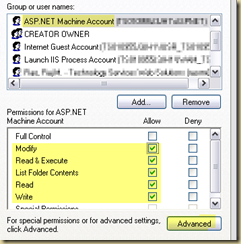
With ASPNet account selected, click on the Modify permission (the other permissions should automatically get enabled).
image
Click on “Advanced”. Put a check on “Replace permissions on all child objects….” and click OK. (Answer yes, if you get a dialog asking you if you are sure).
image
Click OK in the Folder Properties dialog.

Setting up IIS settings

When you DNN web application is run, you need to tell IIS, which file needs to be opened by default. To do this, open up IIS Manager (found under Control Panel->Administrative Settings)
image 
Right click on the node representing the DNN web-app and select properties.image 
(if the node does not look like a web-app, then you need to click the Create button to make the folder in to a web-app image )
Select the Documents tab. If you do not see “default.aspx” in the list, then click Add, type “default.aspx” and click OK. Use the arrow keys on the left to move “Default.aspx” to the top.
image

Setting up DotNetNuke

DotNetNuke is installed using DotNetNuke!. When you run DNN for the very first time, it will detect that it needs to install the database tables, stored procs, etc, as well as configure the website, so that it can be used.

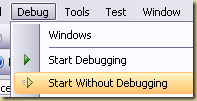
Run DNN by hitting CTRL + F5. (or Debug-> Start Without Debugging).
image 
This is the moment of truth. If you installed everything correctly and setup permissions correctly, you should see the following web-page:
image
Select “Typical” and click next.

On the next page, test the file permissions and make sure that all checks are passed:
image
Click Next.

If you correctly updated your web.config file, then all the settings should automatically be populated into the Database configuration dialog. (If you are using the attached database option, the fields highlighted in yellow will have different values).

Enter the password. Select “Run as db Owner” and enter an object qualifier. (The object qualifier is a prefix that is applied to every object added to the database, this is extremely useful, when your database might hold objects from multiple apps, etc. Choose a short prefix: eg. dnn5)

image

Make sure that you test the database connection and that the test passes. Click Next.

The website will churn for a bit and then respond that it successfully managed to create the database. Click Next
image

In the next screen you need to configure the Host account. You need to provide a password, as well as an email address (even if you do not set the SMTP server). Click Next.
image

On the next screen you need to setup the admin account.
image
Click Next.

The next screen is your final confirmation screen that your installation ran ok.image

If you get the above screen, you can click on the “Go to website” link, which will take you to the home page of your newly installed DNN portal.
image

At this point you should be able to login to your DNN portal using your host account.

Note:

If you get an error similar to “Could not load type 'DotNetNuke.HtmlEditor.FckHtmlEditorProvider.fcklinkgallery'” when you build your web-site, it is because in some versions (5.00.00) of DNN source/starter kit, the “DotNetNuke.FckHtmlEditorProvider.dll” was being deployed to the “Bin\Providers” folder instead of the “Bin” folder. If you move the dll from the providers folder to the parent bin folder, you should be able to successfully build DNN. This issue has been fixed with version 5.00.01 of DNN.

Friday, March 13, 2009

DotNetNuke: Creating Sub-Portals

Once you know how to do this (creating sub-portals) – it turns out to be a very simple thing to do, but before I figured it out, I spent a little while trying to fumble around with the settings to get a new sub-portal going.

The first thing you need to know is that DotNetNuke portals come in 2 flavors:

  • Parent and
  • Child

Parent portals are portals which have their own unique address. (eg: www.portal1.com and www.portal2.com)

Child portals are portals that live within a parent portal. (eg: www.portal1.com/childPortal1 and www.portal1.com/childPortal2)

Here is how you create them:

  • Login to your DNN site. Go to Host –> Portals image
  • Click on “Add new portal” image
  • Select the appropriate type of portal image If you select Parent, then you must enter the name of the portal If instead you select Child, then you must enter a sub-folder name for your portal image

Creating a parent portal on a local dev machine:

If you are developing your DNN portals on your local machine then you might have it configured like this:

Main DNN installation:

File system: c:\inetPub\testDnn500Site

URL: localhost/testDNN500Site

You will then be able to very easily create child portals having address like the following

localHost/testDNN500Site/ChildPortal1

localHost/testDNN500Site/ChildPortal2

But what if you want to try creating a parent portal (one that you could call using the URL: localHost/myTestParentPortal)? Well that involves a couple of more steps:

  1. Create a virtual directory in IIS which points to the same folder as the DNN installation (in this case c:\inetPub\testDnn500Site). Give it the alias that you wish to use as your parent domain (in this case “myTestParentPortal”).
  2. Login as Host into DNN and create a new parent portal. Set the portal alias to “localhost/myTestParentPortal”.

And that is it, you are done.

Note:

There is a school of thought, that one should never use a child portal (one that is accessed using sub-folder path). The reason for this is that some modules might record information such as links using the full path (portal/sub-portal). So if your portal name changes, than you might be in a world of hurt. (Obviously this does not matter if you never envision changing your main portal name). And now that you know how to create parent domains on your local dev box, you arent confined to using child portals.

Reference: Overview of the Portals Page: http://www.dotnetnuke.com/Support/Help/tabid/787/TID/3800/cid/568/Default.aspx

All portals page help topics: http://www.dotnetnuke.com/Support/Help/tabid/787/Default.aspx

Tuesday, February 10, 2009

DNN – My very first DNN project

I am a newbie with DotNetNuke (DNN) and here is what I needed to do to getting it up and running.

Pre-requisites:

  1. Even though VS 2005 & VS 2008 come with a development web-server (Cassini), DNN folk suggest using a IIS sever for development. So go ahead and install IIS on your machine. (You will need WinXP pro to install IIS though, which I have on my work machine and if you have Vista, I think you will need the home premium edition at a minimum to get IIS).
  2. The best way to start working with DNN is to use their starter kit, which installs Visual Studio templates, that will make life a lot more easier when creating DNN sites.
    http://www.codeplex.com/dotnetnuke/Release/ProjectReleases.aspx?ReleaseId=21018 (
  3. SQL Server 2005 (or 2008).

Starting off:

  1. Create your new DNN site by going to File –> New –> Website.
  2. Select “DotNetNuke Web Application Framework” under templates. (if you cannot see this template – make sure that the language selected is Visual Basic and that you have the starter kit installed).
  3. Select HTTP as your location type and for the path, type in a value such as “http://localhost/DotNetNuke Website”. (This will create a folder under your InetPub/wwwRoot folder with the name DotNetNuke Website). Hit OK. VS will churn for a while and create all the files that you need to run a DNN site.
  4. You arent done yet.
  5. You need to run DNN once to get it to setup your database. I am using a SQL Server 2005 instance, running on a separate server. You can use SQL Server Express running on your local machine instead.
    Create a new database on your SQL Server. Set the owner to a login that has db_owner granted on it.
    Create the connection string for the database you just created. (Tool coming soon, until then, use VS’s server explorer – create your connection and then check the properties for the connection and you should be able to copy out the connection-string created by VS for you.)
  6. Open up the web.config and update the “SiteSqlServer” value with the connection string from (5). There should be 2 places that you need to update this value:
    ConnectionString and AppSettings.
  7. Set the default.aspx file in the root of the website as the start-up file.
  8. Hit CTRL+F5 to start the app without debugging. If everything went correctly up to this stage, you should see the installation page. If not, go to the beginning and see if you missed a step (permissions on folders and database are typical causes). If you cannot get the installation page – then you are out of luck on this post!
  9. Once the installation page is up and running, select the typical installation option. On the next page, DNN should have picked up most of the settings from the SiteSQLServer key in the web.config file. You will have to type in the database password. The rest of the settings for the installation are pretty mundane.

Problems I had:

  • After creation and installation of DNN, when I tried to run DNN, I got 6 errors – all of them relating to “DotNetNuke.FckHtmlEditorProvider.dll”:
    • Could not load type 'DotNetNuke.HtmlEditor’.
    • Could not load type 'DotNetNuke.HtmlEditor.FckHtmlEditorProvider.fckStyles'.
    • Could not load type 'DotNetNuke.HtmlEditor.FckHtmlEditorProvider.fckimagegallery'.
    • Could not load type 'DotNetNuke.HtmlEditor.FckHtmlEditorProvider.fckCSS'.
    • Could not load type 'DotNetNuke.HtmlEditor.FckHtmlEditorProvider.fcklinkgallery'.
      To get it working again, all I had to do was move the “DotNetNuke.FckHtmlEditorProvider.dll” from the BIN\Providers folder, to the BIN folder.
  • Error about website not being able to view the directory.
    • This is most probably because you havent set the default.aspx as the start up page.
  • Various errors about files and folders:
    • Check your folder permissions. I gave the local ASPNET and NetworkServices account modify privileges on the website folder and all its children.