Showing posts with label VS 2010. Show all posts

Friday, January 20, 2012

Visual Studio Achievements–Gamification of software development

Check out the new VS add-on called “Visual Studio Achievements”. Its an add-on that tracks what you are coding and provides you awards as you perform certain actions (very much like the achievements that you earn when you play games like Call of Duty on the Xbox).

Learn more and download the add-on from: http://channel9.msdn.com/achievements/visualstudio

And here is a screen-shot of the 2 latest achievements that I earned!

Get your game on!

image

http://channel9.msdn.com/niners/theRajah/achievements/visualstudio

Friday, September 16, 2011

Using WinMerge within Visual Studio

In VS 2011, there are major improvements coming to the in-built Diff tool. But in the mean time, there is a better way to performs merges and compares – it uses the OpenSource tool WinMerge:
Here is how:
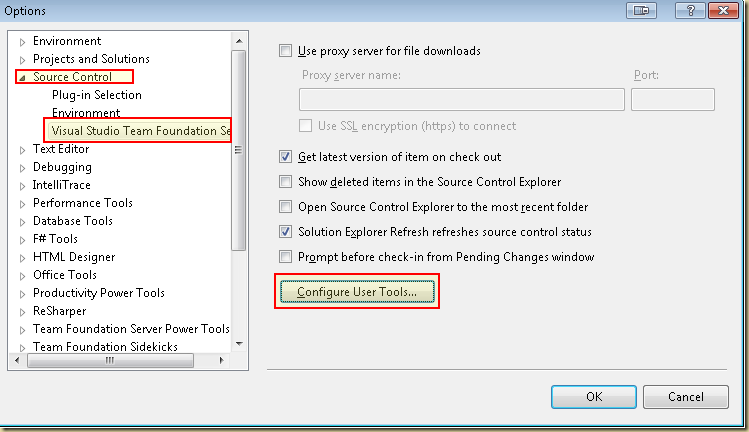
Open the options dialog: Tools –> Options and navigate to Source-Control –> Visual Studio Team Foundation Server.
image
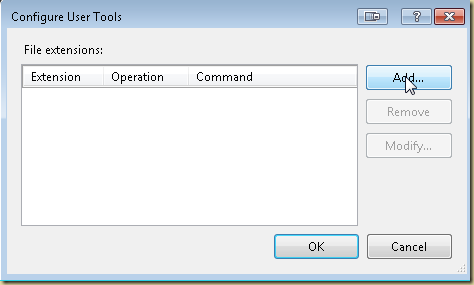
Click on Configure User Tools….
image
Click on Add
image Extension: .*
Operation: Compare
Command: path to WinmergeU.exe
Arguments: /e /u /x /wl /wr /dl %6 /dr %7 %1 %2 /maximize
Click on Add again and this time setup the Merge tool.
image Extension: .*
Operation: Merge
Command: path to WinmergeU.exe
Arguments: /e /u /x /wl /dl %6 /dr %7 %1 %2 %4 /maximize
note: the Arguments are different between the Compare and Merge settings.
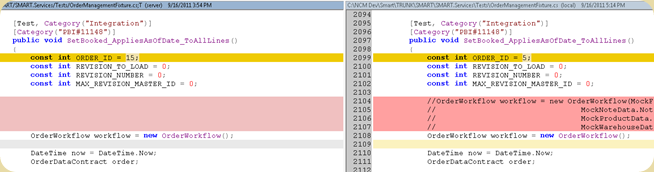
And now you should have a much more powerful way to compare and merge files:
image

Wednesday, August 24, 2011

SlowCheetah! finally transformations come to app.config files

Visual Studio has had since VS2010 (or maybe it was VS2008) a way to setup multiple configuration files for different types of build configurations. But unfortunately, this ability was provided on to web projects (web.config files) and was not available for app.config files.

SlowCheetah changes that. SlowCheetah, allows you to setup multiple config files for the different configurations that you have for your app.config files. Sweet!

Right click on your App.config file and you get the “Add Transform” option.

image

Selecting Add Transform adds multiple config files (one for each build configuration)

image

The transformation syntax is exactly the same as the one used for Web Application Project Deployment. For more info read: http://msdn.microsoft.com/en-us/library/dd465326(VS.100).aspx

Here is an example:

Original App.config
image
App.Debug.Config
image
Leads to this (when you hit F5)  
image

One of the coolest features is the fact that you can preview the transformation without having to run a build:

image (very, very cool).

Now, what I need to figure out is how to get the transformations to occur during a TFS build.

Sunday, May 29, 2011

VS 2010 and Sql Server 2008 R2–Installation Order

Although there is no prescribed proper installation order, based on my experience I have found that installing Sql-Server 2008 before Visual Studio provides for the most trouble free installation experience.

Friday, March 11, 2011

VS2010, TFS 2008 and Unit Tests

For the last couple of days I have been battling with TFS2008 and getting our build server to run the unit tests defined in a Visual Studio 2010 solution.

Previously we installed .Net 4.0 and updated the MsBuild path in the tfsbuild.proj file so our VS2010 solutions were building without a problem on the TFS2008 based build server. But the minute I tried to get the build server to run the unit tests in my solution, the build would partially fail and if looked in the BuildLog.txt file, this is the error I got:

Task "TestToolsTask"
MSBUILD : warning : Visual Studio Team System for Software Testers or Visual Studio Team System for Software Developers is required to run tests as part of a Team Build.  [Path\TFSBuild.proj]
  The previous error was converted to a warning because the task was called with ContinueOnError=true.
  Build continuing because "ContinueOnError" on the task "TestToolsTask" is set to "true".

Googling the error and you find out that you need Visual Studio 2010 Premium or Ultimate edition to be able to run unit tests as part of your build. So I went ahead and installed VS2010 ultimate and I still got the same damn error shown above.

It turns out that in addition to VS2010 (premium or ultimate) you also need VS2008 Development edition on the build machine. (In addition is the operative word here – you need both!). It turns out that the TestToolsTask is looking for VS2008 dev edition before running even a VS2010 based solution (and I am not sure if this for some required dlls or for licensing purposes – either ways – it sucks) (Obviously the reason I had to battle with this issue was that the build machine was never previously setup to run MsTests – even with Vs2008, else someone would have figured out that they needed VS2008 dev edition on that box).

Once I got VS2008 dev edition on that machine I was able to get the build a little further. HOORAY!

Some other things to note:

Once you get both VS2008 dev and VS2010 premium on that machine, you should delete the workspace used by the TFS service on the build machine (the easiest way to do this is to use the TFS SideKicks tool and search for all the workspaces on that machine and then delete the one that is being used for your build). This allows TFS to rebuild the workspace and all the files, but this time with MsBuild 4.0.

Now that I got one problem fixed, TFS decides to throw another one at me and the error that I get is as follows:

Task "TestToolsTask"
  Command:
  d:\Program Files\Microsoft Visual Studio 10.0\Common7\IDE\MSTest.exe /nologo /searchpathroot:"path\Binaries" /resultsfileroot:"path\TestResults" /testcontainer:"path\Binaries\\\\Tests.dll" /publish:"TFSURL" /publishbuild:"vstfs:///Build/Build/26026" /teamproject:"Project" 
  The "TestToolsTask" task is using "MSTest.exe" from "d:\Program Files\Microsoft Visual Studio 10.0\Common7\IDE\MSTest.exe".
  No platform specified for publish operation.
  For switch syntax, type "MSTest /help"
MSBUILD : warning MSB6006: "MSTest.exe" exited with code 1. [path\TFSBuild.proj]
  The previous error was converted to a warning because the task was called with ContinueOnError=true.
  Build continuing because "ContinueOnError" on the task "TestToolsTask" is set to "true".
Done executing task "TestToolsTask" -- FAILED.

[Update 3/14/2010]

The problem with MsTest is that it always use the generic error code of 1 when it fails. So it makes it extremely hard to figure out what is going on when it fails. I looked through a long list of online articles that had me doing a whole bunch of things and at the end the following is what fixed it for me:

  1. Need to Microsoft.TeamFoundation.Build.targets file to use the VS2010 dll instead of the VS2008 dll for the testToolsTask
    In the folder: “C:\Program Files\MSBuild\Microsoft\VisualStudio\TeamBuild\” on the build machine you will find the file “Microsoft.TeamFoundation.Build.targets”. Edit the following lines:
    Comment out the original line for the TesToolsTask:
  2. <UsingTask TaskName="TestToolsTask"
                 AssemblyFile="$(MSTestRefPath)\Microsoft.VisualStudio.QualityTools.MSBuildTasks.dll"
                 Condition=" '$(ProjectFileVersion)' == '2' "/>

    Insert the following line right after it

    <UsingTask TaskName="Microsoft.TeamFoundation.Build.Tasks.TestToolsTask"
                 AssemblyFile="c:\Program Files\Microsoft Visual Studio 10.0\Common7\IDE\PrivateAssemblies\Microsoft.TeamFoundation.Build.ProcessComponents.dll"
                 Condition=" '$(ProjectFileVersion)' == '2' "/>

    Make sure that the path to “Microsoft.TeamFoundation.Build.ProcessComponents.dll” is correct
  3. Next make sure that you have specified the platform in your TfsBuild.proj file:

    This is how it looks like in my TfsBuild.proj:

    <ItemGroup>
        <SolutionToBuild Include="$(SolutionRoot)/mySolution.sln" >
          <Targets></Targets>
          <Properties>Configuration=Release;Platform=Mixed Platforms</Properties>
        </SolutionToBuild>
      </ItemGroup>
      <ItemGroup>
            <ConfigurationToBuild Include="Release|Any CPU">
                <FlavorToBuild>Release</FlavorToBuild>
                <PlatformToBuild>Any CPU</PlatformToBuild>
            </ConfigurationToBuild>
      </ItemGroup>

    If the PlatformToBuild is not specified the “No platform specified for publish operation” error can occur.

With the above 2 fixes in place, the final thing that I needed to specify were which tests should be executed. This is done using one of the following 2 methods:

Specify the VSMDI file using the metadataFile node as follows:

<MetaDataFile Include="$(SolutionRoot)/mySolution.vsmdi">
            <TestList>TestListToExecute</TestList>
</MetaDataFile>

Or use the following node to define a wildcard to select the files that contain the tests:

<TestContainer Include="$(OutDir)\Tests.dll"/>

With that your TeamBuild should be executing all your unit tests.

Code-Coverage:

The only thing that I havent been able to get going is Code-Coverage on my solution. Here is what I have tried:

I have setup the VSMDI to use a testConfiguration for the unit tests. As part of the test-configuration, Code-Coverage is enabled and I have selected the dlls on which code-coverage should be run. With the above settings, some files (like data.coverage) get created in the drop folder, but TFS reports that code-coverage was not run.

After spending quite some time on this problem, I am just about ready to give up (especially because this post seems to state that code-coverage is not possible using TFS 2008 and VS2010 and .Net 4 built modules - http://social.msdn.microsoft.com/Forums/en-US/tfsbuild/thread/39aaaf43-0e3a-41c7-8b72-c1cabc9438e1/).

Friday, December 03, 2010

DebugView doesn’t work with Asp.Net app

I like to use a lot of Debug.WriteLine calls for monitoring how my application is working (especially when I am developing a new feature that might be resource intensive).

Debug.WriteLine will correctly output data to the Output window of Visual Studio. But if you run DebugView (the SysInternals tool for capturing debug data), you will find that DebugView doesn’t capture the debug text.

What I found was that for DebugView to see the debug data, you cannot have the VisualStudio debugger attached to that process. Once I reran my app without debugging (Ctrl + F5), DebugView automatically began displaying the debug text.

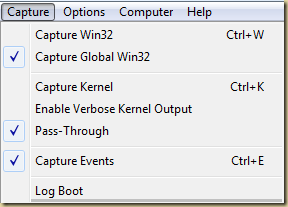
Another thing to remember is that you need to enable the “Capture Global Win32” option in DebugView for it to see Asp.Net debug messages.

image

Note:

This behavior is by design according to the Visual Studio team (Only one debug listener can be enabled at any given time). See: http://connect.microsoft.com/VisualStudio/feedback/details/457063/outputdebugstring-doesnt-work-in-the-debugger-vs-2010-pro-beta-1-c

The compiler will automatically ignore all calls to methods in the Debug class if you build your solution in Release configuration. So if you are wondering why your DebugView is not seeing your debug text in production, that is probably why.

Thursday, September 02, 2010

MSTests - Multiple tests with ID {GUID} found error

If you get the error “Multiple tests with ID {GUID} found.” when attempting to run a MsTest list, then it is one of the following:

If you are using VS2005 then – inheritance of tests is not supported.

If you are using VS2008 or newer, then just refresh your test-manager and the error should go away.

Thursday, August 12, 2010

Visual Studio 2010 and .NET Framework 4 Training Kit

http://www.microsoft.com/downloads/details.aspx?FamilyID=752CB725-969B-4732-A383-ED5740F02E93&displaylang=en

Learn about:

  • C# 4
  • Visual Basic 10
  • F#
  • Parallel Extensions
  • Windows Communication Foundation
  • Windows Workflow
  • Windows Presentation Foundation
  • ASP.NET 4
  • Windows 7
  • Entity Framework
  • ADO.NET Data Services
  • Managed Extensibility Framework
  • Visual Studio Team System

Channel 9: http://channel9.msdn.com/learn/courses/VS2010/

Wednesday, August 11, 2010

WCF 4–New Feature–Default Configuration

Until recently I had worked only with WCF upto version 3.5. So recently when I came across a configuration file which only had this information in it, I was perplexed to say the very least:

<system.serviceModel>
<behaviors>
<serviceBehaviors>
<behavior name="">
<serviceMetadata httpGetEnabled="true" />
<serviceDebug includeExceptionDetailInFaults="false" />
</behavior>
</serviceBehaviors>
</behaviors>
<serviceHostingEnvironment multipleSiteBindingsEnabled="true" />
</system.serviceModel>


What was missing from the web.config file were the endpoint and behavior definitions. But the service worked correctly. Very perplexing indeed.

And then I found out that in WCF4, the .Net team added a new feature called default configuration. The goal of default configuration was to make it easy to create a basic web-service (as easy as it was to create a web-service using the ASMX file – a .Net 2.0). Which is why the above configuration section doesn’t have any settings for endpoints or behaviors – they are being setup by default configuration.

For more information about Default Configuration read:

MSDN: A Developer's Introduction to Windows Communication Foundation 4

Code-Magazine: New Features in WCF 4 that Will Instantly Make You More Productive

Sunday, August 08, 2010

JustCode free offer for MSDN subscribers

Telerik is offering its code refactoring tool “JustCode” for free to MSDN subscriber for the next 3 months (August 1st, 2010 to October 31st, 2010).

http://www.telerik.com/community/promos/msdn-justcode.aspx

I have been using ReSharper 4.5 for a while now and have been pretty happy with it. On my newest machine with 4gb of RAM it works fast and I never felt like it slowed Visual Studio down for me. But ReSharper 4.5 works only with Visual Studio 2008 and my next project is going to be using Visual Studio 2010, so I might just get a chance to work with JustCode and see how well it works and with a free license, the entire team can be using it.

Sunday, August 01, 2010

Windows Workflow, VS 2010 and the Toolbox

imageIs your toolbox for Windows Workflow broken in VS 2010? (Toolbox does not show the categories, or the items within them or the toolbox items are all disabled).

First make sure you have a workflow document open.

If that simple mistake didn’t fix your issue, then close Visual studio and browse to the following folder:

%USERPROFILE%\Local Settings\Application Data\Microsoft\VisualStudio\10.0

Delete the files with extension “.TBD” in this folder. (These files are hidden and if you cant see them you will need to turn on the ability to view hidden files in Windows Explorer). Restart VisualStudio and your toolbox will be rebuilt after which you should have your WF toolbox items available (at least this did it for me).

Tuesday, July 06, 2010

Are you tired of Cassini?

Fret not, finally there is going to be a replacement for the Visual Studio developer web server cassini. Scott Gu blogged that Microsoft is preparing to release “IIS Developer Express” which will be fully compatible with IIS 7.5. For those of you who have developed with Cassini, you know the biggest issue in using it is the fact that is only a reduced functionality web-server and moving to IIS would invariably unearth problems that didn’t show up with Cassini. (Another major issue was the fact that Cassini did not support SSL – which made it hard to test transport security with WCF). IIS Developer Express will be compatible with VS 2010 and will work with all versions of Windows. Another cool feature is that it will run without any admin privileges being needed to install on the computer. Read more: IIS Developer Express.

Another new application that Microsoft is getting ready to release is a new Compact Edition of Sql Server. This version will allow you to create a database for your website without requiring to install any files. This will make it extremely easy to create a database for your website in shared hosting scenarios. Read more: SQL Server Compact Edition.

Personally, the news about IIS Developer Express is extremely exciting to me and I cant wait for it to be released.

Tuesday, June 22, 2010

Layered Architecture Sample – VS 2010

http://layersample.codeplex.com/Wikipage?ProjectName=LayerSample

Project Description
Layered Architecture Sample is designed to demonstrate how to apply various .NET Technologies such as Windows Presentation Foundation (WPF), Windows Communication Foundation (WCF), Windows Workflow Foundation (WF), Windows Form, ASP.NET and ADO.NET Entity Framework to the Layered Architecture Design Pattern. It is aimed at illustrating how code of similar responsibilities can be factored into multiple logical layers which are applicable in most of today's enterprise applications.

LayerSample-App-Arch-Diagram-Jan-2009

Thursday, June 17, 2010

Viewing Entity Framework generated SQL statements

Sometimes you might need to peer into the innards of Entity Framework and determine if the SQL statements its generating are valid and efficient. Here are a couple of ways one can do this:

Method 1: in code

Use the following code to view the statements being generated.

var sql = ((System.Data.Objects.ObjectQuery)query).ToTraceString();
(where query is an object of type IQueryable<>)

The above code displays statements that look like the following:

SELECT
[Extent1].[Id] AS [Id],
[Extent1].[Name] AS [Name]
FROM [dbo].[Customers] AS [Extent1]
WHERE [Extent1].[Name] = @p__linq__0

But what if you need to determine what the value of p_linq__0 is? (look at Method 2)

Note: another problem with method 1 is that it cannot be used view the insert and update statements being generated – just queries.

Method 2: Use a profiler

The profiler can be used to get more in detail information about the sql statements being run against the database. The Profiler tool comes with Sql Server. Unfortunately, the one problem with the profiler tool is that its not available for Express editions of Sql Server.

Solution: AnjLab has a free tool that provides similar profiling capabilities that works pretty well. It is called the AnjLab SqlProfiler. Unfortunately it does not come with much documentation on how to set it up to display the sql statements being executed against the database.

Here is how I had to setup the events to begin capturing the sql statements that were being generated by Entity Framework:

image

I am sure there will be other events that I might need later – but for now the above shown Events list displays almost all the information to determine what SQL statements EF is generating. (I found the RpcStarting event typically contained the parameters being passed in and the SpStmtStarting and SqlStmtStarting contained the queries being executed).

Using the SqlProfiler here is the output I got for the same statement that I showed in method 1 (that was generated using the ToTraceString method):

exec sp_executesql
N'SELECT TOP (1)
[Extent1].[Id] AS [Id],
[Extent1].[Name] AS [Name]
FROM [dbo].[Customers] AS [Extent1]
WHERE [Extent1].[Name] = @p__linq__0',
N'@p__linq__0 nvarchar(4000)',
@p__linq__0=N'Raj Rao'

It is interesting to note that a stored procedure was used to execute the query and that the name used in the where clause was passed in as a parameter (parameterized queries make me happy)

Tuesday, June 08, 2010

Debugging .Net source code in VS2010

If you did not know… VS allows you to step into .Net framework code so as to allow you to track down those intractable bugs. (I think this feature has been around since VS 2008)

To enable this you need to first go to Tools –> Options –> and under Debugger Options, Disable “Enable Just My Code” and Enable “Enable .Net Framework source stepping”.

image

Next make sure that you have a Symbol server defined (in VS 2010, this is already provided).

image

That's it – you should only have to hit F5 and if everthing is working, you should see an EULA, after which you should be able to step into .Net framework code.

Note: Remember to turn off this option when you dont need to step into the .Net framework code, as loading symbols from the server can be a slow process.

More Info: http://referencesource.microsoft.com/Default.aspx

Old but useful FAQ: http://blogs.msdn.com/b/sburke/archive/2008/01/16/configuring-visual-studio-to-debug-net-framework-source-code.aspx#faq

Friday, June 04, 2010

VS 2010 and TFS 2008 and Office 2003

If you are stuck on TFS 2008 and Office 2003, then after you install VS 2010, you will find the office integration to TFS is broken. This is by design as the VS team decided to only support Office 2007 and up with VS 2010.

If you are truly stuck in Office 2003 then here is what you can do, to get back the integration:

1. If you already dont have VS2008 and Team Explorer 2008, then install just Team Explorer 2008.
http://www.microsoft.com/downloads/details.aspx?familyid=0ed12659-3d41-4420-bbb0-a46e51bfca86&displaylang=en

2. Install VS 2008 SP1.
http://www.microsoft.com/downloads/details.aspx?familyid=FBEE1648-7106-44A7-9649-6D9F6D58056E&displaylang=en

3. Install the VS 2008 Forward Compatibility update.
http://www.microsoft.com/downloads/details.aspx?FamilyID=CF13EA45-D17B-4EDC-8E6C-6C5B208EC54D&displaylang=en

The office integration functionality is provided by a COM dll called “TFSOfficeAdd-in.dll”. To get back integration with Office 2003, you need to unregister the VS2010 version of this dll and then register the VS2008 version of this dll. (The dll is found in the “Common7\IDE\PrivateAssemblies” folder of the version specific Visual Studio installation folder).

Here are the commands:

Unregister VS2010 version of TFSOfficeAdd-in.dll
regsvr32 /u "c:\Program Files\Microsoft Visual Studio 10.0\Common7\IDE\PrivateAssemblies\TFSOfficeAdd-in.dll"

Register VS2008 version of TFSOfficeAdd-in.dll
regsvr32 "c:\Program Files\Microsoft Visual Studio 9.0\Common7\IDE\PrivateAssemblies\TFSOfficeAdd-in.dll"

When you are ready to upgrade to Office 2007, just reverse the above 2 commands (i.e., run regsvr32 /u on the VS2008 dll and regsvr32 on the VS2010 dll).

Monday, May 24, 2010

VS 2010 C# Code Samples

VS 2010 C# 4.0 Code Samples are available at: http://code.msdn.microsoft.com/Project/Download/FileDownload.aspx?ProjectName=cs2010samples&DownloadId=10177

Here are the samples available

Language Samples

(links below do not work)

The language samples familiarize you with various C# language features. They are available in the LanguageSamples folder.

The C# 4.0-specific samples are called:

Here is the complete list of language samples:

  • Anonymous Delegates: Demonstrates the use of unnamed delegates to reduce application complexity.
  • Arrays: Shows how to use arrays.
  • Attributes: Shows how to create custom attribute classes, use them in code, and query them through reflection.
  • Collection Classes: Shows how to make non-generic collection classes that can be used with the foreach statement.
  • COM Interop Part I: Shows how to use C# to interoperate with COM objects.
  • COM Interop Part II: Shows how to a use a C# server together with a C++ COM client.
  • Commandline: Demonstrates simple command-line processing and array indexing.
  • Condiational Methods: Demonstrates conditional methods, which provide a powerful mechanism by which calls to methods can be included or omitted depending on whether a symbol is defined.
  • Delegates: Shows how delegates are declared, mapped to static and instance methods, and combined into multicast delegates.
  • Events: Shows how to declare, invoke, and configure events in C#.
  • Explicit Interface: Demonstrates how to explicitly implement interface members and how to access those members from interface instances.
  • Generics: Shows how to make generic collection classes that can be used with the foreach statement.
  • Hello World: A Hello World application.
  • Indexers Part I: Shows how C# classes can declare indexers to provide array-like access to objects.
  • Indexers Part II: Shows how to implement a class that uses indexed properties. Indexed properties enable you to use a class that represents an array-like collection.
  • Libraries: Shows how to use compiler options to create a DLL from multiple source files; also, how to use the library in other programs
  • Named and Optional (C# 4.0): Demonstrates Named and Optional parameters, an alternative to method overloads
  • Nullable: Demonstrates value types, such as double and bool, that can be set to null
  • Office Sample (C# 4.0): Demonstrates how Dynamic and COM Interop make it easy to call Microsoft Office in C# 4.0
  • OLEDB: Demonstrates how to use a Microsoft Access database from C# by creating a dataset and adding tables to it.
  • Operator Overloading: Shows how user-defined classes can overload operators
  • Partial Types: Demonstrates how classes and structures can be defined in multiple C# source-code files
  • PInvokeShows how to call exported DLL functions from C#
  • Properties: Shows how properties are declared and used; also demonstrates abstract properties
  • Python Sample (C# 4.0): Learn how to call a Python script by using the Dynamic feature in C# 4.0
  • Security: Discusses .NET Framework security and shows two ways to modify security permissions in C#: using permission classes and permission attributes
  • Simple Variance (C# 4.0): See how Covariance and Contravariance are supported in generic interfaces and delegates
  • Structs: Shows how to use structs in C#.
  • Threading: Demonstrates various thread activities such as creating and executing a thread, synchronizing threads, interacting between threads, and using a thread pool
  • Unsafe: Shows how to use unmanaged code (code that uses pointers) in C#
  • User Conversions: Shows how to define conversions to and from user-defined types
  • Versioning: Demonstrates versioning in C# by using the override and new keywords
  • XML Documents: Shows how to document code by using XML
  • Yield: Demonstrates how to use the yield keyword to filter items in a collection

LinqSamples

  • DynamicQuery: Code to create LINQ queries at run time.
  • LinqToNorthwind: A basic example of how to use LINQ To SQL to query a database
  • LinqToXmlDataBinding: Bind LINQ to XML code to WPF controls
  • ObjectDumper: A utility for writing the output from a LINQ query to the screen in text mode
  • PasteXmlAsLinq: A Visual Studio addin that automatically converts XML to LINQ to XML.
  • QueryVisualizer: Allows LINQ to SQL developers to see the SQL for their query, and also to see the results of the query in a grid.
  • Reflector: Use LINQ to right queries against the objects in your code using the Reflection APIs
  • RSS: This sample acts as a tiny web server that aggregates several RSS feeds
  • SampleQueries: This is the most important sample and contains about 500 examples of how to use each of the query operators in LINQ to Objects, LINQ to SQL, LINQ to XML and LINQ to DataSet.
  • SimpleLambdas: Several examples of how to write and use lambda expressions
  • SimpleLinqToObjects: The hello world of the LINQ samples. This shows you how easy it is to do simple queries of in-memory objects using LINQ to Objects.
  • SimpleLinqToXml: Get started using LINQ to XML.
  • WebServiceLinqProvider(TerraService): A custom LINQ provider and client for the TerraServer-USA Web service.
  • Whitepapers: The following papers are stored in this directory in Word format:
    • LINQ Project Overview
    • LINQ to SQL Overview for C# and VB
    • Standard Query Operators
    • LINQ to XML Overview
  • WinFormsDataBinding: Learn how to display LINQ queries with grids in a Windows form. It includes a one to many query example.
  • XQuery: Another simple LINQ to XML sample query. This sample shows the minimal code necessary to write a LINQ to XML query

VS 2010 keyboard shortcuts

http://www.microsoft.com/downloads/details.aspx?displaylang=en&FamilyID=92ced922-d505-457a-8c9c-84036160639f

Here are the shortcuts for C#:

image

image

image

Sunday, May 23, 2010