Showing posts with label Mac. Show all posts

Saturday, December 05, 2009

Using Google DSN on your Apple Mac

Google Public DNS is a free, global Domain Name System (DNS) resolution service, that you can use as an alternative to your current DNS provider.

Why do you need a DNS service?

You might not realize it, but you already use a DNS service, typically this is automatically setup for you by your ISP and so you dont have to do anything special to get it working. The DNS service is what allows you to type a named address (such as www.google.com) in your web-browser and get to the website. The DNS service resolves the name to the actual address of the server where the website is located.

So why use Google’s DNS service?

Its provided by Google – good enough for me.

Other reasons:
Google has its DNS servers located all over the globe and they use intelligent algorithms to use the closest one to your computer. This means faster browsing of the web.
Also, Google has a public privacy policy and so you know exactly what they are doing with the data they capture while you use their DNS service. I have no idea how my ISP uses the information it collects while I use their DNS service. (Google stores your IP address for 24 hours, and no other identifying information is stored for longer than that. Read more at http://code.google.com/speed/public-dns/faq.html#privacy)

Alternatives: There is OpenDNS (http://www.opendns.com), but that is not Google!

How to use it:

You need to configure your TCP/IP settings to use the following DNS servers: 8.8.8.8 and 8.8.4.4

Configuring your Mac to use Google DSN.

1. I use a WiFi network to get to the Internet from my Mac. So click on the Wireless icon (2nd from right)
Screen shot 2009-12-05 at 5.06.35 AM 
2. Select “Open Network Preferences”.
Screen shot 2009-12-05 at 5.07.12 AM
3. Click on AirPort and then “Advanced…”Screen shot 2009-12-05 at 5.07.26 AM
4. Click on DNS and enter the numbers “8.8.8.8” and “8.8.4.4”

Screen shot 2009-12-05 at 5.07.41 AM

And you are done. Close the dialog and fire up your browser. Browse to your home-page or my web-page (http://raj.aggregatedIntelligence.com/) and if it shows up – you are good to go.

Tuesday, November 10, 2009

Using Windows 7 theme desktop background on your Mac

I have a Windows 7 laptop and my wife has a Mac.

Microsoft has some beautiful wall-papers that they provide as part of their Windows 7 theme packs.

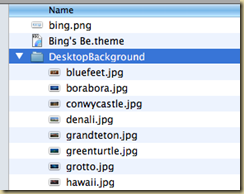
image

My wife wanted these for her laptop too. So instead of just copying the files over to her computer, I decided to try and figure out how to let her open up themes directly on her own Mac so that she could use them.

Here are the steps:

The Windows 7 theme packs are just zip files. Unfortunately, just renaming them and then trying to unzip them on a Mac does not work. Instead what you need is the StuffIt Expander tool: Download it from: http://www.apple.com/downloads/macosx/system_disk_utilities/stuffitexpander.html

Next go over to the Microsoft Personalization Gallery: http://windows.microsoft.com/en-us/windows/downloads/personalize and download a theme to your desktop.

Screen shot 2009-11-10 at 7.06.27 PM

Go to the Applications folder and open up StuffIt Expander.
Screen shot 2009-11-10 at 7.08.13 PM

Next drag the theme file on to the StuffIt Expander window.

Screen shot 2009-11-10 at 7.08.41 PM

This will extract the files from inside the theme file onto your desktop. Browse to the folder inside containing all the wall-papers for the theme. Copy the images over to your pictures folder (or where ever you keep all your wall paper images). Thats it. you are done!

Screen shot 2009-11-10 at 7.09.12 PM Screen shot 2009-11-10 at 7.09.31 PM

One of my favorite themes is the “Bing’s Best” theme. (The thumbnails in the first image in this post are from that theme).

Enjoy!

Saturday, September 12, 2009

DMG files on Macs – Basics for Windows users

When I tried to download my first Mac app from the Internet (Google Earth), it got downloaded as DMG file. When I double clicked it, the file seemed to get mounted and a icon representing the contents showed up on my Desktop. I was able to open the icon and inside was an icon for Google Earth, which I could run. But after restarting the Mac, the icon representing the DMG file had disappeared from the desktop.

This app delivery format intrigued me and I also began wondering what is the correct way to use these applications and here is what I found out:

  • The DMG files are similar to ISO disk images on Windows machines.
  • Double clicking them automatically mounts them and adds a link to your desktop.
  • The correct way to use them seems to be to mount the file and then move the contents to a location from where you can use them. (for example: in the case of Google Earth, I moved it into the Applications folder). Once you have moved the file into a permanent location, you can dismount the DMG file and even delete it.

My First Ever Mac

My wife replaced her Windows laptop with a MacBook Pro and here are my thoughts:

  • The MacBook Pro is awesome (a little expensive, but awesome).
  • I love the multi-touch touch pad is great. I am getting so used to the multi-touch gestures that I am trying to use them on my Dell laptop! (I cant wait for Microsoft’s surface to come to Windows machines).
  • The simplicity in design, the form factor and all make the MacBook Pro very convenient to do everyday activities – browse the net, email, view pictures, compose documents.

Though, as a lifetime Windows user I am still having trouble getting used to the Mac interface. (like the maximize button does not really maximize the window).

How much ever I like the MacBook’s styling the one thing I do feel at this time is that the MacBook can work only as a secondary machine. Windows will have to be the primary machine just because over the years I have gathered all the tools that allow me to get the maximum out of my Windows machine (not to forget the fact that I am a “Windows” based applications developer). Case in point – I have not found a good free replacement for Windows Live Writer for the Mac.

As I continue using the MacBook, I will blog about how I feel about it as well as blog about how to different things on the Mac, when you come from a Windows background.