Showing posts with label iis. Show all posts

Monday, September 28, 2015

Importing Windows Event Log into SQL Server

LogParser is your friend: http://www.microsoft.com/en-us/download/details.aspx?id=24659

Here is a sample command to import the data into SQL Server:

LogParser -i:EVT "SELECT * into prodEvents FROM  c:\temp\prod.evtx" -o:SQL -server:sqlServerName -driver:"SQL Server" -database:testDb -createtable:ON  -cleartable:ON -transactionRowCount:-1  -maxstrfieldlen:8000

note: use -username:test -password:test to specify username and password if you need to.
note: I cant seem to find a way around the 8000 character limit in LogParser. So it always truncates at 8000 characters :(

The table definition is:

CREATE TABLE [dbo].[prodEvents](
    [EventLog] [varchar](8000) NULL,
    [RecordNumber] [int] NULL,
    [TimeGenerated] [datetime] NULL,
    [TimeWritten] [datetime] NULL,
    [EventID] [int] NULL,
    [EventType] [int] NULL,
    [EventTypeName] [varchar](8000) NULL,
    [EventCategory] [int] NULL,
    [EventCategoryName] [varchar](8000) NULL,
    [SourceName] [varchar](8000) NULL,
    [Strings] [varchar](8000) NULL,
    [ComputerName] [varchar](8000) NULL,
    [SID] [varchar](8000) NULL,
    [Message] [varchar](8000) NULL,
    [Data] [varchar](8000) NULL
) ON [PRIMARY]

Keep in mind that you can run many SQL like queries directly against the EVT file locally on your machine without importing the data into a table.

Other useful queries:

logparser.exe -i:evt "select * from c:\temp\prod.evtx where timegenerated > '2015-09-01 00:00:00'"

More info:

Useful commands and tips: (for ASP.net, but useful even for Event Logs) https://support.microsoft.com/en-us/kb/910447

Wednesday, May 30, 2012

IIS–migrating site settings from one server to another

Here is a simple way to migrate your sites and app-pools from one server to another (I was setting up a new dev machine for myself)

Export app-pools and sites from source machine:

%windir%\system32\inetsrv\appcmd list apppool /config /xml > c:\apppools.xml

%windir%\system32\inetsrv\appcmd list site /config /xml > c:\sites.xml

Import app-pools and sites onto destination machine:

%windir%\system32\inetsrv\appcmd add apppool /in < c:\apppools.xml

%windir%\system32\inetsrv\appcmd add site /in < c:\sites.xml

Note:

When you import the app-pool, you will need to edit the apppools.xml file to remove all those app-pools that have already been defined on your destination computer (eg: DefaultAppPool)

When you import the sites, you may get errors, just delete the sites that cause the errors and reimport the sites.xml file.

Note 2:

If you need to export only a single site use the following command:

appcmd list SITE /site.name:SITENAME /config /xml > c:\SITENAME.xml

Monday, March 12, 2012

Could not load type “System.ServiceModel.Activation.HttpModule”

After my IIS server got some updates, it looked like I started getting the “Could not load type “System.ServiceModel.Activation.HttpModule” from assembly “System.ServiceModel, Version=3.0.0.0, Culture=neutral,PublickKeyToken=b77a5c561934e089”

image

It looked to me as though I needed to reregister Asp.Net 4.0 dlls. And AspNet_RegIIs is the answer.

Run : aspnet_regiis –iru

Aspnet_Regiis can be found in one of the following locations (based on your OS type)

%windir%\Microsoft.NET\Framework\v4.0.30319
%windir%\Microsoft.NET\Framework64\v4.0.30319 (64-bit machine)

Monday, January 23, 2012

Windows authentication fails when using hosts file IIS

You can use the hosts file (C:\Windows\System32\drivers\etc\hosts) to setup a mock host-name for local development/testing. Here is an example: I want to use http://helloworld/ locally to point to a test website.

1. Add an entry for helloworld to the hosts file.
image

This means that the url helloworld will be looped back to your local machine

2. Next in IIS Manager, right click on your site and select “Edit Bindings”

3. In the dialog that opens setup your default binding like so:

image

4. Browse to http://helloworld/

Now if you have Windows Authentication turned on, on your site, you will find that IE will not auto log you into the site, nor will you be able to log in by providing the correct credentials. The reason for this is  that in Windows Server 2003 SP1 a new security functionality called “loopback check” was added, this blocks the authentication request and so for your site to work with the new-host name locally you need to disable the loopback check.

This is described in this post: http://support.microsoft.com/kb/926642, and is done via editing the registry (2 methods are provided). Here is the first method (which I like better than method 2 – which completely disables the loopback check).

Method 1: individually allow host-names

  1. Click Start, click Run, type regedit, and then click OK.
  2. Locate and then click the following registry subkey:HKEY_LOCAL_MACHINE\SYSTEM\CurrentControlSet\Control\Lsa\MSV1_0
  3. Right-click MSV1_0, point to New, and then click Multi-String Value.
  4. In the Name column, type BackConnectionHostNames, and then press ENTER.
  5. Right-click BackConnectionHostNames, and then click Modify.
  6. In the Value data box, type the CNAME or the DNS alias, that is used for the local shares on the computer, and then click OK.
    Note Type each host name on a separate line.
    Note If the BackConnectionHostNames registry entry exists as a REG_DWORD type, you have to delete the BackConnectionHostNames registry entry.
  7. Exit Registry Editor, and then restart the computer.
Method 2: disable loopback check
Copy the folllowing text into notepad, save the file with an extension of .reg and run it.

Windows Registry Editor Version 5.00

[HKEY_LOCAL_MACHINE\SYSTEM\CurrentControlSet\Control\Lsa]
"DisableLoopbackCheck"=dword:00000001

Monday, January 16, 2012

Fuslogvw not working for Asp.Net applications

I have found that if I change settings to use a custom path pointed at the root folder of the C drive, Fuslogvw begins to work for Asp.Net applications too. Without that, no logs are generated.

Friday, January 13, 2012

IIS 7x: Listing site settings

Here is a simple command to list all your IIS sites and their different settings (bindings, authentication, etc)

appcmd list sites /text:*

The information that gets captured includes (sample):

SITE
  SITE.NAME:"xxxx"
  SITE.ID:"yy"
  bindings:"http/*:80:xxxxx"
  state:"Started"
  [site]
    name:"xxxx"
    id:"yy"
    serverAutoStart:"true"
   [bindings]
      [binding]
        protocol:"http"
        bindingInformation:"*:80:xxxxx"
    [limits]
      maxBandwidth:"4294967295"
      maxConnections:"4294967295"
      connectionTimeout:"00:02:00"
   [logFile]
      logExtFileFlags:"Date, Time, ClientIP, UserName, ServerIP, Method, UriStem, UriQuery, HttpStatus, Win32Status, TimeTaken, ServerPort, UserAgent, HttpSubStatus"
      customLogPluginClsid:""
      logFormat:"W3C"
      directory:"C:\inetpub\logs\LogFiles"
      period:"Daily"
      truncateSize:"20971520"
      localTimeRollover:"false"
      enabled:"true"
    [traceFailedRequestsLogging]
      enabled:"false"
      directory:"C:\inetpub\logs\FailedReqLogFiles"
      maxLogFiles:"50"
      maxLogFileSizeKB:"512"
      customActionsEnabled:"false"
   [applicationDefaults]
      path:""
      applicationPool:""
      enabledProtocols:"http"
      serviceAutoStartEnabled:"false"
      serviceAutoStartProvider:""
    [virtualDirectoryDefaults]
      path:""
      physicalPath:""
      userName:""
      password:""
      logonMethod:"ClearText"
      allowSubDirConfig:"true"
   [ftpServer]
      allowUTF8:"true"
      serverAutoStart:"true"
     [connections]
        unauthenticatedTimeout:"30"
        controlChannelTimeout:"120"
        dataChannelTimeout:"30"
        disableSocketPooling:"false"
        serverListenBacklog:"60"
        minBytesPerSecond:"240"
        maxConnections:"4294967295"
        resetOnMaxConnections:"false"
        maxBandwidth:"4294967295"
     [security]
        [dataChannelSecurity]
          matchClientAddressForPort:"true"
          matchClientAddressForPasv:"true"
        [commandFiltering]
          maxCommandLine:"4096"
          allowUnlisted:"true"
        [ssl]
          serverCertHash:""
          serverCertStoreName:"MY"
          ssl128:"false"
          controlChannelPolicy:"SslRequire"
          dataChannelPolicy:"SslRequire"
        [sslClientCertificates]
          clientCertificatePolicy:"CertIgnore"
          useActiveDirectoryMapping:"false"
          validationFlags:""
          revocationFreshnessTime:"00:00:00"
          revocationUrlRetrievalTimeout:"00:01:00"
       [authentication]
          [anonymousAuthentication]
            enabled:"false"
            userName:"IUSR"
            password:""
            defaultLogonDomain:"NT AUTHORITY"
            logonMethod:"ClearText"
          [basicAuthentication]
            enabled:"false"
            defaultLogonDomain:""
            logonMethod:"ClearText"
         [clientCertAuthentication]
            enabled:"false"
         [customAuthentication]
            [providers]
      [customFeatures]
        [providers]
      [messages]
        exitMessage:""
        greetingMessage:""
        bannerMessage:""
        maxClientsMessage:""
        suppressDefaultBanner:"false"
        allowLocalDetailedErrors:"true"
        expandVariables:"false"
      [fileHandling]
        keepPartialUploads:"false"
        allowReplaceOnRename:"false"
        allowReadUploadsInProgress:"false"
      [firewallSupport]
        externalIp4Address:""
      [userIsolation]
        mode:"None"
        [activeDirectory]
          adUserName:""
          adPassword:""
          adCacheRefresh:"00:01:00"
      [directoryBrowse]
        showFlags:""
        virtualDirectoryTimeout:"5"
      [logFile]
        logExtFileFlags:"Date, Time, ClientIP, UserName, ServerIP, Method, UriStem, FtpStatus, Win32Status, ServerPort, FtpSubStatus, Session, FullPath"
        directory:"C:\inetpub\logs\LogFiles"
        period:"Daily"
        truncateSize:"20971520"
        localTimeRollover:"false"
        enabled:"true"
        selectiveLogging:"LogSuccessful, LogError, LogInfrastructure"
   [application]
      path:"/"
      applicationPool:"xxxx"
      enabledProtocols:"http"
      serviceAutoStartEnabled:"false"
      serviceAutoStartProvider:""
     [virtualDirectoryDefaults]
        path:""
        physicalPath:""
        userName:""
        password:""
        logonMethod:"ClearText"
        allowSubDirConfig:"true"
     [virtualDirectory]
        path:"/"
        physicalPath:"e:\inetpub\wwwroot\xxxxx"
        userName:""
        password:""
        logonMethod:"ClearText"
        allowSubDirConfig:"true"


More info:

http://learn.iis.net/page.aspx/114/getting-started-with-appcmdexe

Thursday, January 05, 2012

MS-FTP: 530 User cannot log in, home directory inaccessible.

When using Microsoft’s FTP system, if you use the “User name directory” isolation mode:

image

you may get the “530 User cannot log in, home directory inaccessible” error.

Some things to check:

1. You should have a LocalUser folder under the FtpRoot folder.

2. You should have a folder with the name of the account that is being used to connect to the FTP server (eg: account name = testAccount, then folder structure should be Inetpub\Ftproot\LocalUser\testAccount).

3. The account being used to connect to the FTP server should have access to the folder created in step 2. (The account should be a local user account on that box).

Friday, November 18, 2011

Setting up FTP under Windows Server 2008 R2 with user-isolation

In Windows Server 2008 R2. (Important these are not steps for a production environment. Just for setting up a test FTP server.)
In Server Manager:
Under Roles, click Add Role
    install FTP
        Under roles - add Web Server (IIS)
            Under role services select FTP Server
        Complete the installation
In IIS: Create a FTP Site:  
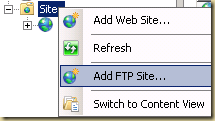
    Right click on Sites and select Add FTP Site
image
        Name it: Whatever you like
        Path: C:\inetpub\ftproot
image
    Bindings and SSL Settings
        Select No SSL
image

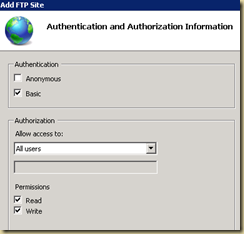
    Authentication information
        Select Basic authentication
            Select Allow access to "All users" with Read and Write permissions
image
    Finish the FTP creation wizard
   
Under settings for the FTP site (in IIS)
    Select FTP User Isolation
        Select "User name directory (disable global virtual directories)"
image
image
   
Accounts:
Create local user accounts (this is how users get access to the FTP site (or at least one way how you can provide access to your ftp site)). (example: create a local account named FtpUser1)
Create a group called FTPUsers and add user accounts created above to the group. (it makes it easier to provide access to folders as shown in the next step).
Provide the group you created in the above step (FTPUsers) modify priviledges on C:\inetpub\ftproot
Next create a sub-folder called LocalUser (C:\inetpub\ftproot\LocalUser). (important to name it exactly that).  
Create a folders for each of the user accounts you created above (eg: if you created an account call FtpUser1, create a folder under LocalUser called FtpUser1).

Test:
Test access to your FTP site via your favorite FTP client. If you did everything correctly, you should have a valid FTP site with an account setup.

FTP 7.5 on Windows Server 2008 R2

If you search for enabling FTP on Windows Server 2008, you most often get redirected to the following site:

http://www.iis.net/download/FTP

And if you download that FTP7.5 installer referenced on that page and try and run it, you get the following error:

image

(this version of the operating system is not supported. FTP Service for IIS 7.0 can be installed only on Windows Server 2008).

Turns out that, for Windows Server 2008 R2, you don’t need to download a separate installer. You just need to enable the FTP role. (This is because on Windows Server 2008 R2, you get IIS 7.5 and not IIS 7.0).

More info: http://learn.iis.net/page.aspx/263/installing-and-configuring-ftp-7-on-iis-7/

Wednesday, October 26, 2011

IIS 7–listing sites and ports used

AppCmd.exe to the rescue (c:\windows\system32\inetserv\appcmd.exe)

The command “appcmd list site” will list all the sites (and in addition will display the bindings and the ports used by the sites)

Wednesday, July 27, 2011

.Net 4 web-apps not working under IIS7

If your .Net 4 web-apps fail to load, or you do not get .Net 4.0 options for websites under IIS7, then it maybe because your .Net 4.0 installation has been corrupted and it probably just needs to be repaired.

Here is one symptom: Under ISAPI and CGI restrictions for the IIS web-server, Asp.Net v4.0.xxxx does not show up.

image

Here is a simple command to run the repair:

%windir%\Microsoft.NET\Framework64\v4.0.30319\SetupCache\Client\setup.exe /repair /x86 /x64 /ia64 /parameterfolder Client /norestart

It took about 15 minutes to complete on my machine.

And after the repair, all the enteries showed up:

image

Monday, July 25, 2011

Determining which website is running under which W3WP process

Or this post could be named “where is IISApp.Vbs script go in IIS 7?”

If you look at the Windows Task Manager, you may see multiple w3wp.exe processes running:

image

So how do you determine which one is running which website? In IIS 6, one would use the IISApp.vbs script to get that info. In IIS 7, there is a new executable called AppCmd.exe. This file can be typically found under the “c:\windows\system32\inetsrv” folder.

To determine which W3Wp.exe process is hosting which website, simply run the following command: AppCmd list wp

image

Friday, March 25, 2011

IIS 7 Error: Cannot read configuration file due to insufficient permissions

If you get the error: Cannot read configuration file due to insufficient permissions

You need to provide the IIS_IUSRS group access to the folder where your website is stored.

Thursday, November 04, 2010

Tuesday, September 28, 2010

Deploy Manager–GUI tool for creating

Came across Deploy Manager tool. It provides a GUI that allows you to manage and create digital certs.

http://www.iamraf.net/Tools/DeployManager-first-release-certificates-management

Until today, I have had to use tools such as MakeCert to create self-signed certs. As I don’t do it often, I always forget the different command line options that I need to use when attempting to create a self-signed cert. Deploy Manager will help through its “New Certificate” UI.

The one thing you need to know: The X500 name needs to specified with a “CN=” (example: CN=www.AggregatedIntelligence.com). In addition you can specify more information using the following format:C=US, ST=Colorado,L=Denver,O=Raj Rao,OU=Aggregated Intelligence,CN=www.aggregatedIntelligence.com, which will create a certificate that looks like the following screen shot:

image

Saturday, September 18, 2010

Asp.Net Cryptographic Oracle Padding (COP) Vulnerability

On September 17, 2010, Microsoft issued an important bulletin regarding a major vulnerability that exists in Asp.Net that can allow a hacker to decrypt and encrypt data used by the Asp.Net application (data such as what is typically stored in the ViewState).

First off, watch this video of an attack run against a DotNetNuke Asp.Net web-site and see the level to which an attacker can gain access to the site: (super user, ability to upload modules and files, ability to run commands and ability to download files once the attack was successful and the cryptographic keys were extracted).

More information:

MS bulletin: Microsoft Security Advisory (2416728)

  • Called the "Cryptographic Oracle Padding"  (COP) or sometimes just the “Padding Oracle” vulnerability. (I like COP better!)
  • Exists in many web-platforms (asp.net, ruby on rails, etc). It looks like it exploits the fact that some web-platforms return different error messages depending on the type of errors in the encrypted text. By modifying the encrypted information and sending it repeatedly to the server the hacker can get enough information to be able to begin decrypting and encrypting data.
  • Some other systems that are vulnerable:
    JSF implementations such as: Apache MyFaces and SUN Mojarra.
    Ruby on Rails
    OWASP ESAPI for Java (up to version 2.0 RC2)
    Video of an attack on a website hosted using Apache (created by Netifera): http://www.youtube.com/watch?v=euujmKDxmC4
  • Most developers follow the best practice of never storing sensitive information in the view-state, but sometimes people end up using the view-state to store sensitive information, because they think it is secure as it is encrypted. In this case, sensitive information may get compromised.
  • Best practice: never pass sensitive information to a client if the client has no use for it - which normally makes the ViewState ineligible for storing secure data. Also, never store security related information in the ViewState (eg: user access level, etc.)
  • Microsoft has provided a basic vb script that allows you to quickly determine which web-sites might be vulnerable.
  • Shutting down the vulnerability is as simple as making sure the server does not provide error specific information and uses a single error page for all errors. (In addition, the single error page can use a random delay to make it even harder to exploit cryptographic vulnerabilities – there is an old one where one could use the time taken to respond to a request to slowly glean more information into the cryptographic keys). (Enable custom errors and use a single error page for all errors)

As the paper by concludes by paraphrasing Nate Lawson, so do I, as the thoughts are important:

If you find yourself needing to implement crypto, it’s likely you
can avoid it by thinking about the situation differently. For example, many web developers get seduced into designing their own crypto as a way to push state to the client instead of managing it on the server. This opens up a much wider attack surface on the server application since now every part of that blob needs to be considered malicious. As the saying goes, "... now you have two problems."

The reason all this is so hard is that crypto is fundamentally unsafe. People hear that crypto is strong and confuse that with safe. Crypto can indeed be very strong but is extremely unsafe.

More technical info and background on the vulnerability is available from Microsoft at this blog-post: http://blogs.technet.com/b/srd/archive/2010/09/17/understanding-the-asp-net-vulnerability.aspx

Information about the exploit can be found at the Netifera (I believe they are the guys who found the vulnerability): http://netifera.com/research/

Also, while at NetiFera read their paper: Practical Padding Oracle Attacks.


More videos of attacks against the COP vulnerability: http://www.youtube.com/results?search_query=Padding+oracle+attack&aq=f

A paper describing the attack in more detail:
A.K.L. Yau, K.G. Paterson and C.J. Mitchell, Padding oracle attacks on CBC-mode encryption with random and secret IVs. In H. Gilbert and H. Handschuh (eds.), FSE 2005, Lecture Notes in Computer Science Vol. 3557, pp. 299-319, Springer, 2005.

Friday, September 03, 2010