Showing posts with label Microsoft. Show all posts

Monday, August 16, 2021

Microsoft work account doesnt send push notifications for sign ins to Authenticator app

 Push notifications suddenly stopped working for me. Here is how I fixed it:

  1. If you go to My Sign-Ins (microsoft.com), you can see all the ways in which you can sign in to your microsoft account.
  2. In my case, "Microsoft Authenticator" was in the list, but on my phone within the authenticator app, my account was grayed out.
  3. I deleted the "Microsoft Authenticator" item from the list and then added back again. The website prompts you through a couple of dialogs and then finally provides you a QR code to use against the authenticator app. Once I did this, the account was no longer grayed out.
  4. The final step was to mark the Authenticator app as the default sign in method on the website.
That fixed my problem.

Thursday, January 05, 2012

MS-FTP: 530 User cannot log in, home directory inaccessible.

When using Microsoft’s FTP system, if you use the “User name directory” isolation mode:

image

you may get the “530 User cannot log in, home directory inaccessible” error.

Some things to check:

1. You should have a LocalUser folder under the FtpRoot folder.

2. You should have a folder with the name of the account that is being used to connect to the FTP server (eg: account name = testAccount, then folder structure should be Inetpub\Ftproot\LocalUser\testAccount).

3. The account being used to connect to the FTP server should have access to the folder created in step 2. (The account should be a local user account on that box).

Friday, November 18, 2011

Setting up FTP under Windows Server 2008 R2 with user-isolation

In Windows Server 2008 R2. (Important these are not steps for a production environment. Just for setting up a test FTP server.)
In Server Manager:
Under Roles, click Add Role
    install FTP
        Under roles - add Web Server (IIS)
            Under role services select FTP Server
        Complete the installation
In IIS: Create a FTP Site:  
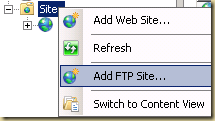
    Right click on Sites and select Add FTP Site
image
        Name it: Whatever you like
        Path: C:\inetpub\ftproot
image
    Bindings and SSL Settings
        Select No SSL
image

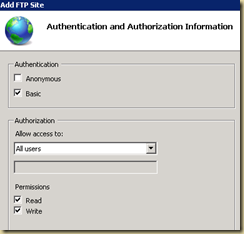
    Authentication information
        Select Basic authentication
            Select Allow access to "All users" with Read and Write permissions
image
    Finish the FTP creation wizard
   
Under settings for the FTP site (in IIS)
    Select FTP User Isolation
        Select "User name directory (disable global virtual directories)"
image
image
   
Accounts:
Create local user accounts (this is how users get access to the FTP site (or at least one way how you can provide access to your ftp site)). (example: create a local account named FtpUser1)
Create a group called FTPUsers and add user accounts created above to the group. (it makes it easier to provide access to folders as shown in the next step).
Provide the group you created in the above step (FTPUsers) modify priviledges on C:\inetpub\ftproot
Next create a sub-folder called LocalUser (C:\inetpub\ftproot\LocalUser). (important to name it exactly that).  
Create a folders for each of the user accounts you created above (eg: if you created an account call FtpUser1, create a folder under LocalUser called FtpUser1).

Test:
Test access to your FTP site via your favorite FTP client. If you did everything correctly, you should have a valid FTP site with an account setup.

FTP 7.5 on Windows Server 2008 R2

If you search for enabling FTP on Windows Server 2008, you most often get redirected to the following site:

http://www.iis.net/download/FTP

And if you download that FTP7.5 installer referenced on that page and try and run it, you get the following error:

image

(this version of the operating system is not supported. FTP Service for IIS 7.0 can be installed only on Windows Server 2008).

Turns out that, for Windows Server 2008 R2, you don’t need to download a separate installer. You just need to enable the FTP role. (This is because on Windows Server 2008 R2, you get IIS 7.5 and not IIS 7.0).

More info: http://learn.iis.net/page.aspx/263/installing-and-configuring-ftp-7-on-iis-7/

Saturday, August 13, 2011

Summary: How Microsoft manages development projects using TFS

Came across this slightly old series of posts by the developer division at Microsoft that shows how they used TFS to manage their software development (specifically of Orcas).
  1. Our process
  2. Feature Crews
  3. Planning a release
  4. Tracking Progress
  5. Tracking multiple projects
    1. Addendum
  6. Tracking Risk
  7. Tracking quality gates
  8. Transparency in reporting
Some of the interesting things that I found from the posts:
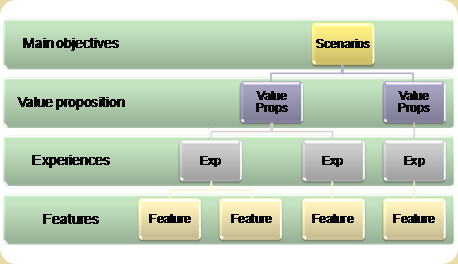
image_2
The process involved the planning stages (scenario, value proposition, experience) and the implementation stage (features). The experiences most directly relate to epics. The goal was to break down epics (experiences) into features that could be easily implemented within an iteration (or two). One of the interesting things to note is that how a handful of scenarios can break-down into 1000s of scenarios. (for every epic (experience) there were approximately 4 features).
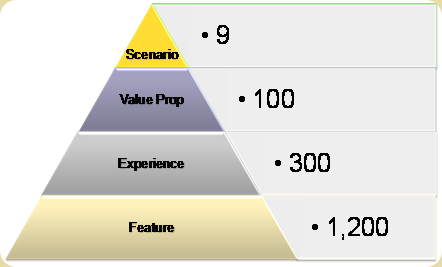
image_6
Each feature is implemented by a “feature crew”
Development occurs of a branch pulled from the trunk for each feature (Chapter 2)
image_7)
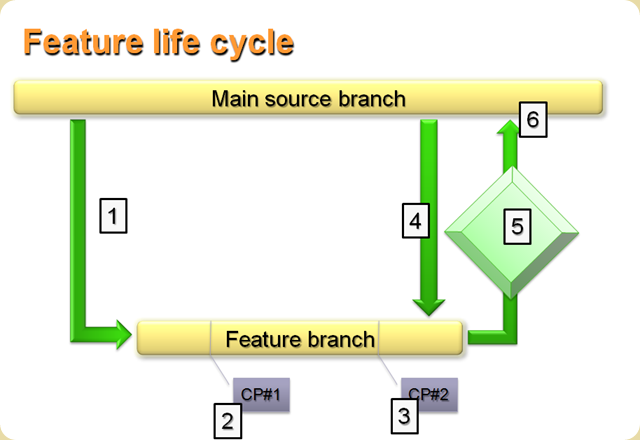
Chapter 2 is extremely interesting as it goes into the lifecycle described by the above diagram.
  1. Branch code.
  2. Checkpoint 1: demo design and get feedback
  3. Checkpoint 2: demo completed functionality
  4. Merge code from main into the branch
  5. Quality gates: before check-in to main branch can be done, a set of quality gates need to be satisfied
  6. Code is checked in. Because of the quality gates, the quality of the main branch is kept high
Another interesting thing about this chapter is that one of the quality gates was a code-coverage percentage of 70% through automated testing.
Some of the interesting quality gate categories used were:
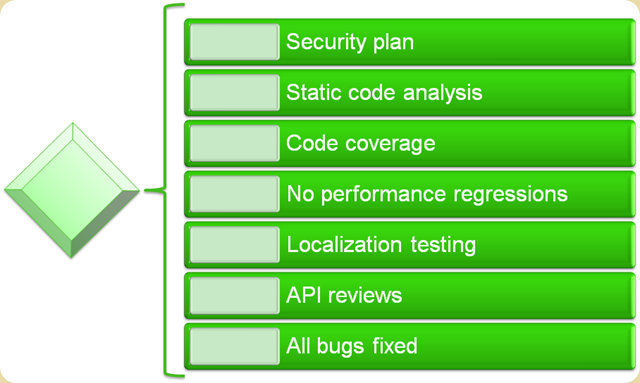
image_8
Chapter 4 discusses how features were assigned “ball-park” estimates. Estimates for all features were aggregated into a single excel work-book which was then used to determine the order in which features were to be implemented.
In chapter 5, the post discusses about how TFS allowed the different feature teams to use whatever development model that suited them (Agile, Waterfall, etc). Communication of the state of the feature implementation was done via a single tab in TFS that needed to be updated once per week. The tab itself is minimal in the amount of information it collects. (looks like the dev-div used a custom template and the post describes the Progress tab in detail). There were 4 dates that were key during a feature implementation. All dates did not have to be committed to at the beginning of the feature implementation project. Instead the process followed was:
At the start of the feature crew, the team needed to commit to a checkpoint 1 date, and estimate the checkpoint 2 and finish dates. At checkpoint 1, the team would commit to a checkpoint 2 date, and estimate the finish date. At checkpoint 2, they would commit to a finish date.
Another interesting item tracked was the risk. This was tracked via 3 codes: green, yellow and red
Green = We will meet the dates
Yellow = We are at risk
Red = We will miss the dates
Tracking of multiple projects (chapter 6) was done via reports generated of off TFS. This report was used in a weekly meeting of feature team managers, the program manager and product manager. The report presented all features that were currently in flight. This was done using a red, yellow, green report that showed:
  • Green - The percentage of work completed, when compared to the entire project
  • Yellow - The percentage of work completed in the last reporting period, typically 1 week.
  • Red - The number of hours of work remaining.
  • You'll also note that the date the feature crew is scheduled to complete is included with the name of the feature crew.
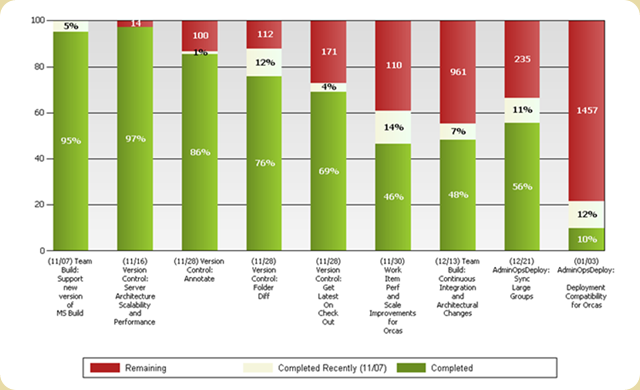
image_9
An interesting thing to note in this post is the culture shift that occurred by the transparency that occurred with data that was available up and down the chain regarding project status:
In this culture of openness, management had to let go of "holding people to their original dates, no matter what" and those on the feature crew had to let go of "presenting the project status in the best possible light" or "hiding bad news".
Chapter 7 discusses the risk information that is entered into the Progress tab that was discussed earlier in chapter 5. The risk information is pulled into an excel report and all those teams that are not green need to explain why the progress tab as well as in a weekly meeting as to why the team maybe slipping. Again an interesting part about this post is that the division was making the mind shift to transparency, where it was better to let the team know early than latter that you were going to be late. The team itself realized that sometimes slips occurred because of issues that were out of the control of the team.
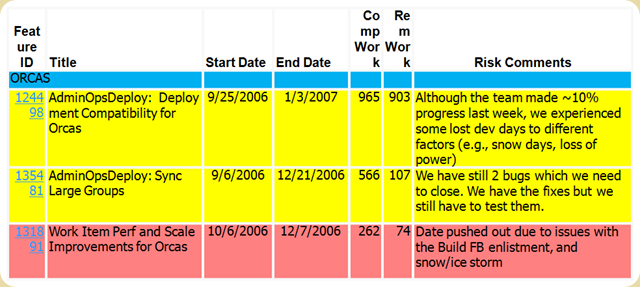
image_8
Quality gate tracking is discussed in Chapter 8. The tracking itself is done via the Quality Gates tab in TFS.
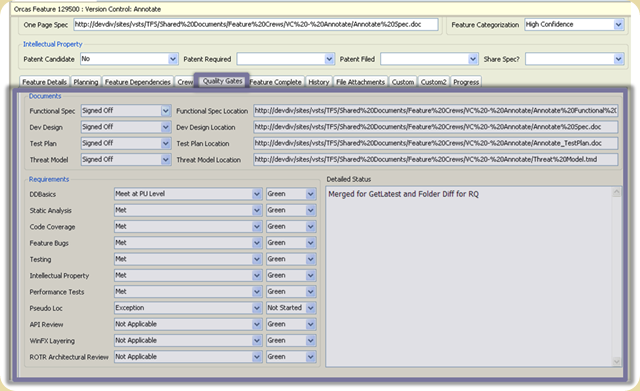
image_2 (1)
The final chapter (Chapter 9) shows the reports that was used by the top management to keep track of the progress that was being made across scenarios, value proposition, experiences and features. (basically a drill-down report).
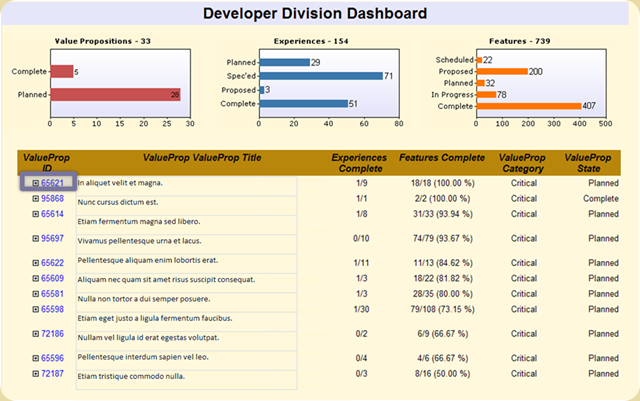
image_2 (2)
The entire series is an extremely good read and I strongly suggest that you read them (as what I have done here is to only summarize the series, mainly so that I would have them all in one location). Thanks to Greg Boer for doing an excellent job of documenting how TFS was being used within the dev-division at Microsoft.
More info:
Ever Wonder How We Build Software at Microsoft? Now You Can Read All About It!

KinectFusion–Realtime 3D reconstruction using the Kinect

Shown at Siggraph 2011. This is very, very cool:

http://research.microsoft.com/apps/video/default.aspx?id=152742

http://www.engadget.com/2011/08/09/microsofts-kinectfusion-research-project-offers-real-time-3d-re/

Wednesday, June 22, 2011

Wednesday, October 20, 2010

Enterprise Library – Logging Database creation script

The Enterprise Library database creation scripts can be found in the following location:

Version 3.x : \App Blocks\Src\Logging\TraceListeners\Database\Scripts

Version 5.x : \Blocks\Logging\Src\DatabaseTraceListener\Scripts

(you need to download the source files to get the scripts).

Saturday, October 16, 2010

Zune installation error 0x80070643

Got the 0x80070643 error while trying to install version 4.7 of the software. Seems to be a common problem.

After trying many things:
1. Uninstall old version of Zune
2. Change permissions on “HKEY_LOCAL_MACHINE\SOFTWARE\Microsoft\Windows\CurrentVersion\Installer\UserData\S-1-5-18\Components” to the Administrator.
3. Delete the Zune folder in the Program Files folder
4. Created the zune folder in the program files folder

The one thing that seemed to make the installer work was a system restart. Not sure if any of the above steps helped, but if you have the same problem, I would first try and restart the computer. If that doesn’t work, uninstall your existing Zune install and then restart and then reinstall. (imo: I think the problem probably stems from the fact that the installer is trying to install without forcing a system restart – sometimes a system needs to be restarted when attempting an upgrade – nothing wrong with that!)

I love the Zune, Windows Phone 7 platforms. But you would think that when Microsoft is trying to go after the Apple iPhone/iTouch market, they would better test the installer and also have some meaningful error messages that make sense to the masses (what in the world is 0x80070643).

Wednesday, October 06, 2010

3-D ad from Microsoft

An impressive 3D ad from Microsoft for Office 2010. (you need the red/blue 3d glasses to see them in all their glory)

Friday, September 24, 2010

I <3 Microsoft Hohm

I have been using Microsoft Hohm since it was released and I love it. I love it because there is no other tool like it and I love it because of how well it shows information about the energy usage of your home.

For example, here is a graph of the energy usage of my home:

image

It not only shows me the cost per day, but also information about the temperature. There are options to view the graph by only electricity usage and by natural gas usage. Its nice, because, it lets me track my usage just as I would track my money on my bank’s site.

Hohm also shows you a breakdown by usage (which perplexes me, as I am not sure how they are deriving these numbers. my best guess its based on my home’s profile, where I put in information such as number of bulbs, water heater, etc.)

image

As of now, I think the only provider that is supported is Xcel Energy (Don’t know why more energy providers don’t provide this service).

If you want real-time usage data, then, check out Blue-Line, which uses a meter monitoring device in conjunction with Hohm to provide real-time monitoring: http://www.bluelineinnovations.com/

Saturday, September 04, 2010

The future of Silverlight

From a September 1st, 2010 blog post: The Future of Silverlight

Read the post as it talks about Silverlight and HTML5 and Microsoft’s commitment to both technologies. But for the following 3 major classes of applications here is what we will see happening:

Premium Media Experiences
  • High Definition (HD) H.264 and VC-1 video
  • Content protection including DRM
  • Stereoscopic 3D video
  • Multicast
  • Live broadcast support
  • (Adaptive) Smooth Streaming
  • Information overlays / Picture-in-picture
  • Analytics support with the Silverlight Analytics Framework
Consumer Apps and Games
  • Fully-customizable controls with styles and skins
  • The best designer – developer workflow through our tools and shared projects
  • Fluid motion via bitmap caching and effects
  • Perspective 3D
  • Responsive UI with .NET and multithreading
Business/Enterprise Apps
  • Full set of 60+ pre-built controls, fully stylable
  • Productive app design and development tools
  • Powerful performance with .NET and C#
  • Powerful, interactive data visualizations through charting controls and Silverlight PivotViewer
  • Flexible data support: Databinding, binary XML, LINQ, and Local Storage
  • Virtualized printing
  • COM automation (including Microsoft Office connectivity), group policy management

Silverlight is much more than a browser technology.

Silverlight will be available for out of browser scenarios (desktop), mobile, and even the living room. In the near future I am excited to see the innovations in the mobile field with Windows Phone 7.

Wednesday, June 16, 2010

Do you need an external connector license?

We had this question for a Sql Server licensing scenario recently.

The Sql Server licensing model for most organizations is derived from the Microsoft volume licensing model.

External connector licenses are also called EC licenses or Internet Connector licenses.

An EC license is required when you have users external to your organization that need to access to any Microsoft application server (such as Sql Server) and the application server was licensed originally using a (Server + Client Access) license model . An EC license is NOT required when the application server is licensed using a per-processor based license.

 cal_external cal_processor
External Connector license is required when you license the the server software using a CAL model. External connector licenses are not required when you license using a per processor licensing model

More Info:

CAL licenses (from Microsoft Volume Licensing): http://www.microsoft.com/licensing/about-licensing/client-access-license.aspx

SQL Server 2005 licensing and Internet Connector License: http://www.microsoft.com/sqlserver/2005/en/us/pricing-licensing-faq.aspx

Q. What exactly is a processor license and how does it work?

A. ……..
….. In addition to the installation rights to the actual server software, processor licenses also grant any number of devices or users the right to access and use the server software running on those processors. These access rights are available to all devices or users, regardless of whether they are inside the organization (intranet scenarios) or outside the organization (intranet or extranet scenarios). The processor license contains all that you need. With a processor license, there is no need to purchase separate server licenses, CALs, or Internet connector licenses.

(this information is for the most part also valid for Sql Server 2008)

SQL Server 2008 Licensing Information: http://www.microsoft.com/sqlserver/2008/en/us/licensing-faq.aspx

Tuesday, June 01, 2010

Loading IIS logs into a SQL Server Database

Tools required:
Microsoft Log Parser : http://www.microsoft.com/downloads/details.aspx?FamilyID=890cd06b-abf8-4c25-91b2-f8d975cf8c07&displaylang=en
SQL Server Instance

Command:

LogParser "SELECT * INTO webLog FROM “S:\ex100515.log" -i:W3C -o:SQL -server:sqlServerName -database:IISLogs -driver:"SQL Server" -createTable:ON -username:yourSQLUsername -password:yourSQLPassword

note: if you wish to use integrated security (your windows account) to access the database, then, simply dont use the username and password fields.

If you need to import multiple log files, then you can specify a wild card instead of a specific file name (eg: s:\*.log).

List of fields that are imported:

image

note 2: Depending on the speed of your machine, size of the log files, etc., this can be a long operation and you wont get any indication on whether it is running or not, just be patient. (it took me about 4 minutes to import a file with 300k lines).

Saturday, May 08, 2010

Testing web pages in different IE versions - Expression Web SuperPreview

A new free tool from Microsoft called “Expression Web SuperPreview ” is now available:

Expression Web SuperPreview for Internet Explorer speeds the essential task of debugging your web sites for cross-browser compatibility…..
Expression Web SuperPreview for Internet Explorer is a stand-alone visual debugging tool that makes it faster and easier to migrate your sites from Internet Explorer 6 to Internet Explorer 7 or 8…..
Expression Web SuperPreview for Internet Explorer shows your web pages rendered in Internet Explorer 6 and either Internet Explorer 7 or Internet Explorer 8, depending on which version you have installed on your machine. You can view the pages side by side or as an onion-skin overlay and use rulers, guides and zoom/pan tools to precisely identify differences in layout. You can even compare your page comp to how the targeted browsers render the page….
Expression Web SuperPreview for Internet Explorer is a standalone, free application with no expiration and no technical support from Microsoft.

Download it from: http://www.microsoft.com/downloads/details.aspx?FamilyID=8e6ac106-525d-45d0-84db-dccff3fae677&displaylang=en

Friday, May 07, 2010

The World’s Largest Data Centers

via: http://www.datacenterknowledge.com/special-report-the-worlds-largest-data-centers/

Interesting that Google’s data centers do not appear on this list, even though when I think of massive container style data-centers, the first name that pops to my head is Google.

On the worthy contenders list, here is what they have to say:

Where is Google? Many readers may have expected to see some Google data centers on the list. But Google’s new construction has focused on data center campuses featuring multiple facilities, rather than single huge buildings. As a result, Google has multiple data center buildings larger than 300,000 feet, but none (that we can find, anyway) larger than the 400,000 SF entry point for our list. For more on Google’s data centers, see our Google Data Center FAQ.

The cloud is here and it is here to stay!

Tuesday, May 04, 2010

Internet Explorer crashes when you open an Office document in a Sharepoint portal

Problem: IE (7 and 8) crash when you try and open an Office document (word, excel, etc) that is part of a document library in a Sharepoint portal/site.

Fix:

- Check your MS office installation folder (typically: C:\Program Files\Microsoft Office)

- If you have 2 Office folders (named OfficeVersionNumber: Office11, Office12), then you probably have the same problem as me.

Basically there are 2 versions of Office on your machine and the version that is causing a conflict for IE when it tries to load the Office document from the Sharepoint site.

The specific DLL the conflict arises in is called “OWSSUPP.DLL”

- In my case we have Office 2003, so it should use the OWSSUPP.DLL in the Office11 folder, so all I had to do was rename the OWSSUPP.DLL to OWSSUPP.bak in the Office12 folder.
Once that was done – everything started working properly.

Sunday, March 07, 2010

Microsoft U-Prove SDK

Microsoft released a preview of the U-Prove cryptographic technology at this year’s RSA Conference. As part of the preview, Microsoft has released a C# reference implementation to allow testing/learning about this new technology.

The C# SDK can be found at : http://code.msdn.microsoft.com/uprovesdkcsharp

The CTP information can be found at: https://connect.microsoft.com/content/content.aspx?contentid=12505&siteid=642

The spec details can be found at: https://connect.microsoft.com/site642/Downloads/DownloadDetails.aspx?DownloadID=26953

This looks like an early CTP release that Microsoft is using to discover what the security community as a whole thinks about U-Prove and I am sure the SDK and the specs will change quite a bit. I am not sure what the road map for U-Prove and hence dont know what the time line looks towards a full-fledged release of the technology.