Wednesday, September 10, 2008

LIDAR saves the day in Iowa

 Link | The Des Moines Register

You may have never heard of the National Geospatial-Intelligence Agency, a Department of Defense combat support agency and member of the national Intelligence Community. But this agency is considered the "eyes of the nation" and uses technologies, including Light Detection and Ranging technology, or LiDar, to gather information that can be used to prepare for and respond to terrorist threats and disasters.

...in 2005, after Des Moines hosted the National Governors Association's meeting, a disk with some of the data was given to government officials in Iowa. It contained information about buildings, trees, forests and topography.

When the Des Moines River threatened Johnston this summer, Croll was out surveying a residential area to determine where water might hit.
"An intern with me said, 'Why couldn't you just use some of that LiDar data we got?'" Croll said.

"Instead of taking sandbags to 15 houses, we took them to one," he said. "It was incredibly accurate" in predicting where flooding would occur. He has since used the information for a tree inventory in the city.

Free chapter from Professional Visual Studio 2008

The guys who wrote "Professional Visual Studio 2008" have posted one of the chapters from their book for reviewing.

Free chapter from Professional Visual Studio 2008

Chapter link: http://www.wrox.com/WileyCDA/WroxTitle/productCd-0470229888.html

Unfortunately, the chapter provided is the first one from the book and hence does not show the true depth of information that is provided by the book.

Check out their tips and tricks blog - http://www.professionalvisualstudio.com/blog/tags/tips-and-tricks/ - which has some very useful tips.

Tuesday, September 09, 2008

Live webcast of first beam circulation in LHC

The first beam that CERN will attempt to circulate in the LHC will be webcasted live at Link

If you live in the mountain time then the time at which it will occur is 01:00am on September 10th.

Switzerland
Wednesday, September 10, 2008 at 9:00:00 AM
UTC+2 hours (CEST)

U.S.A. - Mountain Time
Wednesday, September 10, 2008 at 1:00:00 AM
UTC-6 hours (MDT)

Corresponding UTC (GMT)
Wednesday, September 10, 2008 at 07:00:00

Determine the time in your region using the following link: World Clock

Saturday, September 06, 2008

iRinger Turns Music and Video Files into iPhone Ringtones

via LifeHacker

Windows only: Desktop app iRinger converts any video or music file into an iPhone ringtone, including YouTube videos. You already saw how to make a ringtone using only iTunes, but iRinger brings audio effects (like fade in and out, flanger, and delay) and video support to its single, simple interface. You can download any YouTube clip, for example, and import it into iRinger to create a tone.

mainss

From http://www.iringer.net/:

  • Convert virtually any audio format into an iPhone ringtone
  • Extracts audio out of video
  • Choose which section of the audio you want to hear
  • Adjust ringtone length, volume, fade in, fade out and loop gap
  • Export to iPhone ringtone format and import right into iTunes
  • Export to iPhone using SCP/SFTP and skip using iTunes
  • Use audio effects: Delay, Flanger, Boost, Reverse, etc.
  • IE8 Beta and Chrome - Initial thoughts, memory and sand boxing

    First thoughts about IE8 - it is much faster than IE7! (As IE8 and IE7 don't work together - IE8 installs over IE7, this is more subjective than a quantitative measurement)

    Once you hide all the toolbars, IE8's new interface is just as clean as Chrome's. (Though I like how Chrome doesn't have a Title Bar - that much saved real-estate).
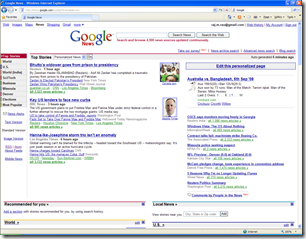
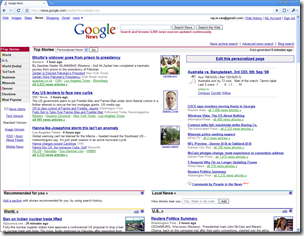
    image image

    Chrome also doesn't have a permanent status bar. It uses a temporary status bar that appears whenever Chrome needs to show updates - otherwise it remains hidden.

    image The status bar in Chrome.

    Memory:

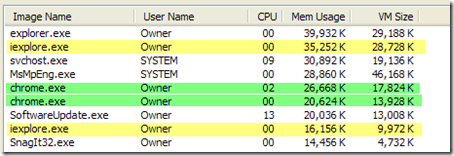
    After making sure that IE8 had all add-ons disabled, I loaded the following page into both browsers: http://news.google.com/nwshp?hl=en&tab=wn and then waited a minute for the 2 browsers to settle. And I was surprised by the results. I was expecting Chrome to have a much smaller foot-print. But take a look at my Task Manager snap-shot:
    image

    IE8 is using 51,408K of memory and its virtual memory footprint is 38,700K. On the other hand Chrome is using 47,292K of memory and has a virtual memory footprint of 31,752K. Very close to each other. (What I did see was that after about a minute - Chrome was still using the CPU - regularly hitting 13% CPU usage. Whereas IE8 had settled completely and did not show up as using any of the CPU - cpu usage 0%).

    Another thing that surprised me was that both IE8 and Chrome spawned 2 processes - even though I had only a single page open in both of them. With Chrome, this behavior is understandable, because it sand-boxes each browser tab. Which means that I can shut down the second process of Chrome using the task manager and Chrome will still be alive and standing. This is an awesome feature in Chrome that is not available in any other browser. (Many times I would have one of my browser tabs misbehave and bring down my entire browser's session and has caused me heart aches many a time).

    image 

    Chrome's Aw, Snap! page, shown when I shut down the second Chrome process which I assumed to be the process supporting my current browsing tab. If I were instead to shut down the first process - then the entire Chrome browser is taken down. But I doubt that would ever happen in the real world, where a browsing session within a tab is able to affect the entire browser. (There is no good way to determine which is the parent browser process for either IE8 or Chrome. You will know when you kill it using the task manager - because the entire browser will go down).

    Screen shot below - Chrome - the 3rd tab was killed and it shows the Aw, Snap! icon, all others remain unchanged and preserve their session.

    image

    Now here is another surprising thing that I did not know about IE8. It seems to support sandboxing of some format too. If you have multiple tabs open - with each one pointing to a different page and if you shut one of the browsing processes, IE8 doesn't completely shutdown. Instead only the affected tab dies. All other tabs preserve their session as though nothing happened.

    image

    And in case the entire browser session goes down - when you load up IE8 again - it asks you if you want it to load your previous session and allows you to bring up all the tabs that you were previously browsing. (Notice in the above screen shot that even though I have 4 tabs open - there are only 3 IE processes - weird - I would have thought there should have been one for each tab, plus one for the master process).

    image

    Chrome too has this feature: (where if the entire browser dies, the next time you load it up - it asks you if you would like to restore all open browser tabs from the previous session).

    image 

    Conclusion: Both IE8 and Chrome support sand-boxing. Chrome seems to do it just a little bit better. But the feature exists in both browsers and you can browse the Internet feeling more secure that a rouge web-page wont crash your work that you might be doing in another tab.

    Lets review:

    IE8 and Chrome look and feel about the same.

    Chrome might be just a tad bit faster in loading some pages.

    Chrome saves real estate by getting rid of the title bar and doesnt have a permanent status bar. (This I like, very much!)

    IE8 and Chrome have almost the same memory footprint.

    Both browsers support sand-boxing of tabs and one tab's crash doesnt bring down all the other tabs.

    hmmm.... not much different there..... !

    Thursday, September 04, 2008

    Google Picasa - Automatic Face Recognition

    Google just updated PicasaWeb. The updated website sports redesigned interfaces and some cool new features. One of which is automatic face recognition which is used in name tagging all your images.

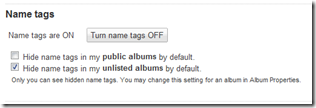
    You first need to enable name tags. To do this - go to Settings

    image

    and then click on the button to turn Name Tags on.

    image

    Once you do this, remember to hit the Save Button.

    Google will now go through all your images and find faces to tag.

    image

    Even though Google said that the estimated processing time would be 40 minutes - it finished in about 20 minutes for me.

    image

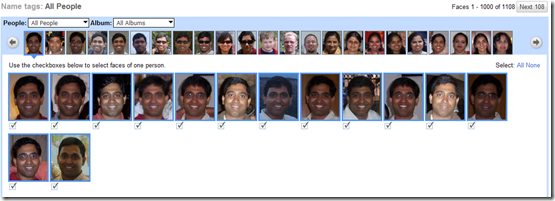
    Clicking on Add name tags brings up the tagging interface. On this page Google displays all the faces that it thought belonged to the same person and allows you to tag them at once. Looking through my results - Google never made a mistake.

    image

    It found images of me that spanned almost 4 years during which time : my weight changed, I had glasses on and off and pictures were taken at different times of the day. The only thing that I noticed was that it was not able to match those images of mine where I was wearing sunglasses and covering my eyes.

    image

    Overall, I am impressed and it definitely saves a ton of time. (Imagine individually tagging each of the over 1000 faces that was found by Picasa). My only wish was that this feature was available in desktop version of Picasa and that I could tag and search for images by the people in them. (Version 3 which is in beta right now does not have this feature).

    Wednesday, September 03, 2008

    Google Chrome - Beta bug in installer

    The Google Chrome installer doesnt seem to check for an existing Google Chrome installation on a computer. The installer downloads the bits from Google, begins installation and then craps out with the following error.

    image

    The Google Chrome initial installer is under 500kb in size. The installer once run on your computer will then begin downloading the actual bits for Chrome and then will proceed to install them.

    Here is the link to web installer for Chrome. link

    Google Chrome - Initial Thoughts

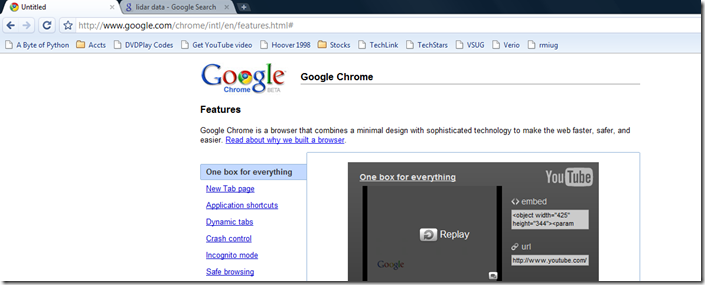
    • Just like the Google Search page, Google Chrome is nice and clean. Very little clutter in the form of buttons, etc.
    • It is fast. Start-up is fast and loading pages like Google.com and Google.com/news is noticeably faster.

    image

    • The UI is slick and renders fast.
    • Most sites work with Chrome: (below a screen shot of FaceBook in Google Chrome)

    image
    FaceBook in Google Chrome

    • The new version of Hotmail does not work in Chrome and it automatically takes you to the old Hotmail format web-page. (The not so web2.0 one).

    image

    I am sure there is a flurry of activity today at Microsoft where they are trying to figure out how to make IE better. I am also sure that it was by no coincidence that Google waited until IE8 was almost ready for release (it is in beta right now and has been in development since 2006) before they announced Chrome. This will definitely make it hard for Microsoft to catch up with the innovations that we are seeing in Chrome.

    But, I am excited - I am sure with Google's release of Chrome - we are going to see a battle of one-up-manship, which will ultimately lead to a better browser for us the consumer.

    The only thing I dont like about Chrome at this point is its name.... it doesnt lend itself to being acronymized. (Internet Explorer is IE and FireFox is FF to me).

    Lower bug rates at your software shop

    Here is how Microsoft is reducing the number of bugs in its software. The We-Syp lets the programmers feel the pain that the users of the application feel when they encounter a bug.

    Photosynth - Mt. Rushmore

    image 

    My newest PhotoSynth, Mount Rushmore is online now. Photosynth - Mt. Rushmore

    and here is one I did for Crazy Horse memorial.

    image

    PhotoSynth - Crazy Horse Memorial