OffMaps is a mapping application for the iPhone, that allows you to download map tiles to your iPhone for later viewing. Extremely useful if you are planning on travelling outside the U.S.
Check out this screen cast


OffMaps is a mapping application for the iPhone, that allows you to download map tiles to your iPhone for later viewing. Extremely useful if you are planning on travelling outside the U.S.
Check out this screen cast
con amore • \kahn-uh-MOR-ee\ • adverb
*1 : with love, devotion, or zest 2 : in a tender manner -- used as a direction in music
Using packing fractions of course – the video explains it all and it is interesting way to learn about packing fractions.
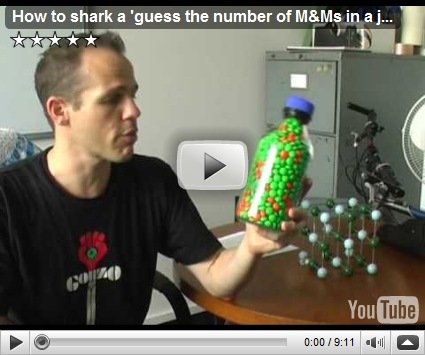
What you need to know:
Volume of a single M&M: 4/3 * pi * (a^2) * b = .636 cubic centimeters
Packing fraction for M&Ms: 68%
Number of M&Ms: ((Volume of Jar) / (volume of one M&M)) x (packing fraction) = (volume of jar in cc) * 0.43248
If the volume of your jar is in imperial units (gallons, etc, find out the number of cc in 1 unit and then use 0.43248) (eg: 1 gallon = 3785.411 CC)
This is an extremely useful SQL Server 2005 script that will show you the amount of space used by individual tables in your database.
The script uses the prebuilt stored proc sp_spaceused to determine space utilization. The problem is that sp_spaceused returns each table’s result as a separate query set. This script captures each result in to a temporary table and displays the results.
BEGIN try
DECLARE @table_name VARCHAR(500) ;
DECLARE @schema_name VARCHAR(500) ;
DECLARE @tab1 TABLE(
        tablename VARCHAR (500) collate database_default
,       schemaname VARCHAR(500) collate database_default
);
DECLARE  @temp_table TABLE (
        tablename sysname
,       row_count INT
,       reserved VARCHAR(50) collate database_default
,       data VARCHAR(50) collate database_default
,       index_size VARCHAR(50) collate database_default
,       unused VARCHAR(50) collate database_default
);

INSERT INTO @tab1
SELECT t1.name
,       t2.name
FROM sys.tables t1
INNER JOIN sys.schemas t2 ON ( t1.schema_id = t2.schema_id );

DECLARE c1 CURSOR FOR
SELECT t2.name + '.' + t1.name
FROM sys.tables t1
INNER JOIN sys.schemas t2 ON ( t1.schema_id = t2.schema_id );

OPEN c1;
FETCH NEXT FROM c1 INTO @table_name;
WHILE @@FETCH_STATUS = 0
BEGIN
        SET @table_name = REPLACE(@table_name, '[','');
        SET @table_name = REPLACE(@table_name, ']','');

        -- make sure the object exists before calling sp_spacedused
        IF EXISTS(SELECT OBJECT_ID FROM sys.objects WHERE OBJECT_ID = OBJECT_ID(@table_name))
        BEGIN
                INSERT INTO @temp_table EXEC sp_spaceused @table_name, false ;
        END

        FETCH NEXT FROM c1 INTO @table_name;
END;
CLOSE c1;
DEALLOCATE c1;
SELECT t1.*
,       t2.schemaname
FROM @temp_table t1
INNER JOIN @tab1 t2 ON (t1.tablename = t2.tablename )
ORDER BY  row_count desc,schemaname,tablename;
END try
BEGIN catch
SELECT -100 AS l1
,       ERROR_NUMBER() AS tablename
,       ERROR_SEVERITY() AS row_count
,       ERROR_STATE() AS reserved
,       ERROR_MESSAGE() AS data
,       1 AS index_size, 1 AS unused, 1 AS schemaname
END catch
Running sp_spaceused without any parameters will give you the total space used by your database. If instead you provide it the name of the table, it will display the space used by that table. And if you want to manually run sp_spaceused on each table in your database, here is how you do it:
EXEC sp_MSforeachtable @command1="EXEC sp_spaceused '?'";
Go
How do you go about storing custom settings in a configuration file?
If all you want to do is to store a name value pair, then use “<appSettings>” section.
eg:
<appSettings>
   <add key="keyName" value="associatedValue"/>
</appSettings>
But what do you do if you wish to store more than one value per key. In this case you need to create a custom configuration section.
Lets first look at an example of such a section:
<EFTConfiguration>
  <Settings>
    <add Name="setting1" Value1="Some Value" Value2="More Values" Value3="Some More Values" />
    <add Name="setting2" Value1="Some Value 2" Value2="More Values 2" Value3="Some More Values 2" />
  </Settings>
</EFTConfiguration>
So how do you do this?
We will approach the code sections in reverse (as that defines the object dependencies of each class we need to implement:
Step 1.3: Create a class that inherits from the ConfigurationElement class.
This class stores the property values for each of the individual settings shown above. You will find that each property (Name, Value1, Value2, Value3) are implemented as properties. In addition the meta data defines whether the property is required or not and which one of the properties acts as the key (in this case it is Name).
public class EFTSettingsElement : ConfigurationElement
{
    [ConfigurationProperty("Name", DefaultValue = null, IsKey = true, IsRequired = true)]
    public String Name
    {
        get { return (String)this["Name"]; }
        set { this["Name"] = value; }
    }

    [ConfigurationProperty("Value1", DefaultValue = null, IsKey = false, IsRequired = true)]
    public String Value1
    {
        get { return (String)this["Value1"]; }
        set { this["Value1"] = value; }
    }

    [ConfigurationProperty("Value2", DefaultValue = null, IsKey = false, IsRequired = true)]
    public String Value2
    {
        get { return (String)this["Value2"]; }
        set { this["Value2"] = value; }
    }

    [ConfigurationProperty("Value3", DefaultValue = null, IsKey = false, IsRequired = false)]
    public String Value3
    {
        get { return (String)this["Value3"]; }
        set { this["Value3"] = value; }
    }
}
Step 1.2: Create a class that derives from the ConfigurationElementCollection class
This class acts as a collection that will store all the settings objects defined as EFTSettingsElements. The main thing here is that GetElementKey has been overriden and we have added some indexer properties.
[ConfigurationCollection(typeof(EFTSettingsElement))]
public class EFTSettingsCollection : ConfigurationElementCollection
{
    protected override ConfigurationElement CreateNewElement()
    {
        return new EFTSettingsElement();
    }

    protected override object GetElementKey(ConfigurationElement element)
    {
        return ((EFTSettingsElement)(element)).Name;
    }

    public EFTSettingsElement this[int idx]
    {
        get
        {
            return (EFTSettingsElement)BaseGet(idx);
        }
    }

    public EFTSettingsElement this[string name]
    {
        get
        {
            return (EFTSettingsElement)BaseGet(name);
        }
    }
}
Step 1.1: Create a class that derives from ConfigurationSection class
Because the configuration section is called “EFTConfiguration” in my app.config, I am going to name the class “EFTConfigurationSection”. The name of the element that will contain the individual settings object is defined here – and in this case is called “Settings”.
[Serializable]
public class EFTConfigurationSection : ConfigurationSection
{
    [ConfigurationProperty("Settings")]
    public EFTSettingsCollection Settings
    {
        get { return ((EFTSettingsCollection)(base["Settings"])); }
    }
}
Note:
The above was all written within the namespace “EFTLibrary.Settings” (you will see why this is important in the final step.
Step 2: Add the settings to the configuration file
<EFTConfiguration>
  <Settings>
    <add Name="setting1" Value1="Some Value" Value2="More Values" Value3="Some More Values" />
    <add Name="setting2" Value1="Some Value 2" Value2="More Values 2" Value3="Some More Values 2" />
  </Settings>
</EFTConfiguration>
Step 3: Add a reference to the custom configuration class that tells .Net how to read the custom configuration section shown in step 2.
In the config file’s configSection section (<configuration><configSections>) we need to add a reference to the cllas that derives the ConfigurationSection class. (In this case EFTConfigurationSection). For this you need the name of the module in which the class resides (could be exe or dll) as well as the class name and the namespace within which it is defined.
<configuration>
  <configSections>
    <section name="EFTConfiguration" type="EFTLibrary.Settings.EFTConfigurationSection, EFTFileMoverLib" requirePermission="false"/>
  </configSections>
Here is how the section is formatted:
name: the name of the section in the config file which stores custom settings using the custom provider being defined in the type property.
type: Namespace.ClassName, ModuleName
And you should be in business!
Here is how you read the custom section in your code:
EFTConfigurationSection section = (EFTConfigurationSection)ConfigurationManager.GetSection("EFTConfiguration");
if (section != null)
{
    EFTSettingsElement settings = section.Settings["setting1"];
    if (settings != null)
    {
        value1 = settings.Value1;
        value2 = settings.Value2;
        value3 = settings.Value3;
    }
}
Google Latitude has been released for the iPhone as a web-app. Google Latitude allows you to share your location with people that you choose.
Visit www.google.com/latitude on your phone to update your location.

To access it as an application, click on the book mark button (+) and choose “Add to home screen”.
My Location was available on my iPhone’s Google Maps app from the very beginning. My Location uses GPS (and Cell phone tower triangulation when GPS is not available) to determine your location on the cell phone.
This week Google Maps added this feature to browser based map searches. I tried it out and was surprised at the accuracy. (It got the exact building).

The left red rectangle shows you the button used to enable “My Location”. The red box in the middle shows the location that Google pointed out was my location (Which is on the exact building that I work from).
The above was tested in Google Chrome and in IE (after installing Google Gears).
When performing a data-compare in VSTS Database Edition (aka Data Dude), if you do not see one of the tables in your source or target databases – the reason is most probably very simple:
It does not have a primary key!
Spent many hours trying to figure this one out!
OptiRoute has been updated with tweaks to the UI and the algorithm. I have also added a help document and screen casts on using OptiRoute.
Using OptiRoute with Bing Maps

Using OptiRoute with Google Maps


