Thursday, February 17, 2022

PowerBi Icons for Diagrams

 I found a couple of awesome resources for PowerBi icons that you can use in diagrams.

1. Official repo of PBI icons: microsoft/PowerBI-Icons: Icons (PNG and SVG) for Power BI (github.com)

2. Marc Lelijveld repo: Marc has provided an xml document that allows you to easily import all the icons into Draw.Io. This makes the whole process extremely easy. marclelijveld/Power-BI-Icons: Icons (PNG and SVG) for Power BI (github.com). The most import link from Marc's repo is the raw link to the xml file: https://raw.githubusercontent.com/marclelijveld/Power-BI-Icons/main/Diagrams.net_PowerBIIcons.xml. This link can be used in Draw.Io via File >>Open Library from >> URL...

Once done, you will get all the icons in the left pane:


Here is more info from Marc's blog: Power BI Icon Library – now includes official icons to use in Draw.io / Diagrams.net – Data – Marc (data-marc.com)

Saturday, January 29, 2022

Kids.youtube.com activate not working

The kids YouTube activation site (https://kids.youtube.come/activate) doesn't seem to be working. I was able to sign in via https://accounts.google.com/o/oauth2/device/usercode?flowName=DeviceOAuth

With 2 kids at home, I feel like a catastrophe has been averted. Hope it helps you.


Thursday, January 27, 2022

Emails from PowerBi.com service dont go to Email Groups

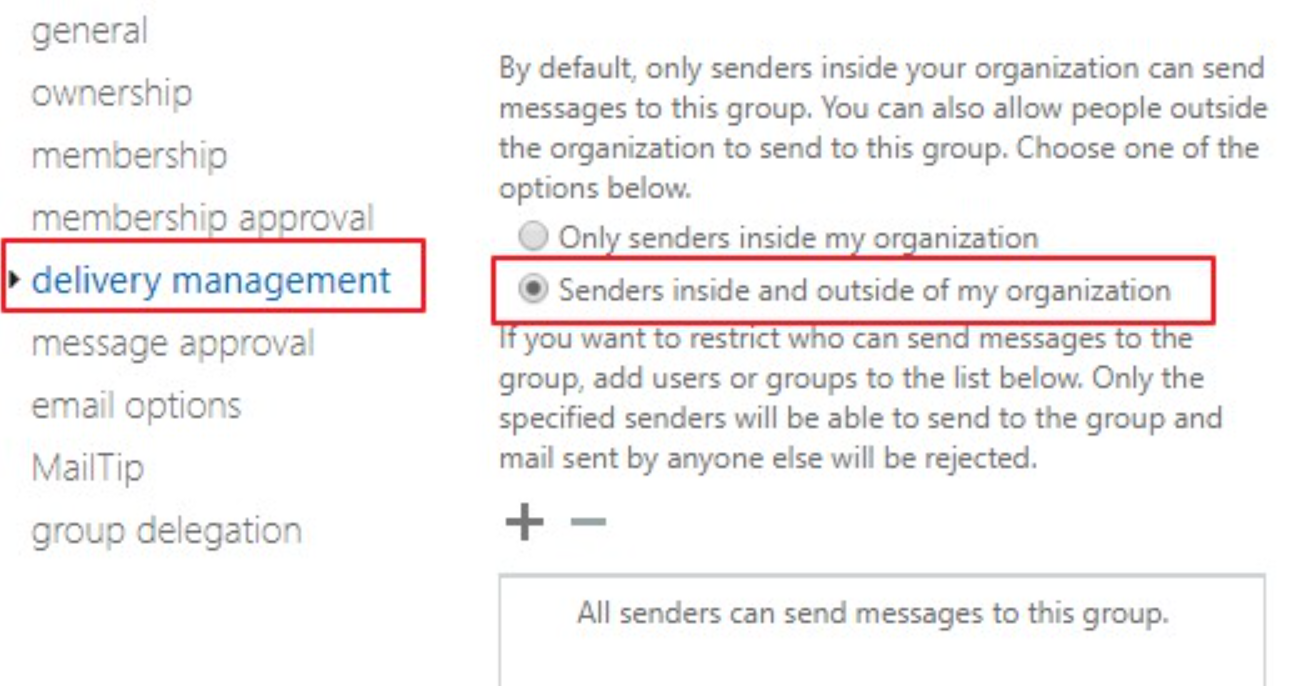
If you use a distribution group for emails in PowerBi.com (eg: Subscriptions to reports or to Dataset refresh issues), you might find that you dont receive the emails if you are using Office365. This is likely because by default Distribution Lists in O365 disable receiving emails from external addresses and this has to be enabled.

To receive emails from PowerBi, you have to enable receiving emails from external senders. You need to enable the option: "Senders inside and outside of my organization". This can be done by following the instruction here: https://docs.microsoft.com/en-us/Exchange/recipients/distribution-groups?view=exchserver-2019#delivery-management. 


PowerBi REST API - A binary operator with incompatible types was detected. Found operand types 'Edm.String' and 'Edm.Guid' for operator kind 'Equal'.

 I was trying to query to get workspace with a certain ID.

Using this as the filter (id eq 9c02ab25-0e94-4835-92e6-62ac6460acd0): https://api.powerbi.com/v1.0/myorg/groups?%24filter=id%20eq%209c02ab25-0e94-4835-92e6-62ac6460acd0, causes it fail with the error

{
  "error": {
    "code": "InvalidRequest",
    "message": "A binary operator with incompatible types was detected. Found operand types 'Edm.String' and 'Edm.Guid' for operator kind 'Equal'."
  }
}


The fix is to put your GUID within single quotes: id eq '9c02ab25-0e94-4835-92e6-62ac6460acd0'

https://api.powerbi.com/v1.0/myorg/groups?%24filter=id%20eq%20'9c02ab25-0e94-4835-92e6-62ac6460acd0'


Sunday, January 09, 2022

Creating/Documenting your Lego designs

I recently needed to create a lego build instruction for the Lego team that I coach. I have used Lego Digital Designer, but that tool has been discontinued.

I found that the new tool the community uses is called:  Bricklink Studio and it can be downloaded from: Studio Download [BrickLink]

When you need to add parts, you can do it via the Palette Config:


The sets I imported are:

  1. 51515 - Robot Inventor Mindstorm
  2. 45678 - Spike Prime Set
  3. 45680 - Spike Prime Expansion Set
  4. 45300 - Wedo 2.0

And here are some links to additional parts you might need:

LEGO MINDSTORMS Robot Inventor Set 51515 part list and Studio part files (antonsmindstorms.com)

Studio Spike Prime CustomParts.zip - Google Drive (via CAD.pdf (primelessons.org))

CustomParts-51515 Mindstorms.zip - Google Drive (via CAD.pdf (primelessons.org))


Friday, November 12, 2021

Android 2021 - scrolling capture not working with Chrome browser

 Looks like the scrolling capture functionality is application dependent. With Chrome, you can enable this functionality by visiting chrome://flags/#scroll-capture

Once you enable and restart, you should I'll be able to scroll capture web pages in chrome.

Thursday, November 11, 2021

GitLens Remote Provider Settings for AWS CodeCommit

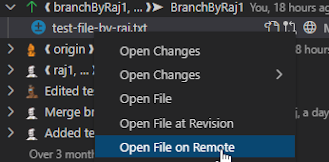
 If you wish to enable the shortcuts in GitLens to open remotes, as shown in the following screen shots, here is how I did it.

Screenshots of the shortcuts:


1. CTRL+SHIFT+P to open command palette.

2. Type Preferences: Open Settings (Json). Click on it to open the user settings file.


3. Add the following code, fixing the region values (As a Gist: gitlens.remotes.aws.md (github.com))

"gitlens.remotes": [{
        "regex": "https:\\/\\/(git-codecommit\\.us-west-2\\.amazonaws\\.com)\\/v1/repos\\/(.+)",
        "type": "Custom",
        "name": "AWS Code Commit",
        "protocol": "https",
        "urls": {
            "repository": "https://us-west-2.console.aws.amazon.com/codesuite/codecommit/repositories/${repo}/browse?region=us-west-2",
            "branches": "https://us-west-2.console.aws.amazon.com/codesuite/codecommit/repositories/${repo}/branches?region=us-west-2",
            "branch": "https://us-west-2.console.aws.amazon.com/codesuite/codecommit/repositories/${repo}/browse/refs/heads/${branch}?region=us-west-2", //
            "commit": "https://us-west-2.console.aws.amazon.com/codesuite/codecommit/repositories/${repo}/commit/${id}?region=us-west-2",
            "file": "https://us-west-2.console.aws.amazon.com/codesuite/codecommit/repositories/${repo}/browse/refs/heads/${branch}/--/${file}?region=us-west-2&lines=${line}",
            "fileInBranch": "https://us-west-2.console.aws.amazon.com/codesuite/codecommit/repositories/${repo}/browse/refs/heads/${branch}/--/${file}?region=us-west-2&lines=${line}",
            "fileInCommit": "https://us-west-2.console.aws.amazon.com/codesuite/codecommit/repositories/${repo}/browse/${id}/--/${file}?region=us-west-2&lines=${line}",
            "fileLine": "{line}",
            "fileRange": "${start}-${end}"
            }
        }]


Reference: https://github.com/Axosoft/vscode-gitlens#remote-provider-integration-settings-

Monday, August 16, 2021

Microsoft work account doesnt send push notifications for sign ins to Authenticator app

 Push notifications suddenly stopped working for me. Here is how I fixed it:

  1. If you go to My Sign-Ins (microsoft.com), you can see all the ways in which you can sign in to your microsoft account.
  2. In my case, "Microsoft Authenticator" was in the list, but on my phone within the authenticator app, my account was grayed out.
  3. I deleted the "Microsoft Authenticator" item from the list and then added back again. The website prompts you through a couple of dialogs and then finally provides you a QR code to use against the authenticator app. Once I did this, the account was no longer grayed out.
  4. The final step was to mark the Authenticator app as the default sign in method on the website.
That fixed my problem.

Tuesday, May 11, 2021

Add Git Commands to the Visual Studio Toolbar

 I wanted to be able to quickly access the Git "Manage Branches" from the toolbar.


Here is how to do it:

  1. Go to View >> Toolbars >> Customize
  2. Switch to the "Commands" tab
  3. Then radio check the "Toolbar" option and in the drop down select "Standard" (in my case, I wanted to add it to the standard toolbar. You can add it to a new toolbar or a different toolbar).
  4. Click on the "Add Command" button
  5. Select "View" under categories
  6. Select "GitRepositoryWindow" and also optionally the "GitWindow"


  7. You now have easy access to the commands:


Wednesday, February 24, 2021

Databricks - Connecting to an Azure Storage Account using a SAS key

This post is about setting up a connection from Databricks to Azure Storage Account using a SAS key.

This method is perfect when you need to provide temporary access with fine grained permssions to a storage account. In this post, I will show how to setup readonly access for a temporary period of time.

Please note: you should try and use pass through credentials, but, that functionality need premium tier databricks. This post is a workaround that utilizes the Shared Access Signature.


  1. Create a Shared Access Signature Key for your Storage Account
    Go to your Storage Account and under "Settings", select "Shared access signature"
    Allowed Services: "Blob"
    Allowed Resource Types: "Container" and "Object"
    Permissions: "Read" and "List"


  2. Click Generate SAS and connection string
  3. You need the "SAS Token"


  4. Python code for Databricks Notebook:

from pyspark.sql import SparkSession
container = "<<containerName>>"
storageAccountName = "<<storageAccountName>>"
sasKey = "<<sas token from step 3>>"; # you should use:#dbutils.secrets.get(scope="scopeName",key="keyName") 
spark.conf.set(f"fs.azure.sas.{container}.{storageAccountName}.blob.core.windows.net", sasKey)
spark.conf.set("spark.sql.execution.arrow.enabled", "true")
spark.conf.set("spark.sql.execution.arrow.fallback.enabled", "true")

inputfilepath = f"wasbs://{container}@{storageAccountName}.blob.core.windows.net/pathToFile/fileName.parquet"
dataframe = spark.read.option("mergeSchema", "true").parquet(inputfilepath)
dataframe.describe()
display(dataframe)


Comments:

The SAS key doesn't seem to allow you to use the abfs[s]: endpoint from databricks. Instead you need to use the wasb[s]: endpoint. Also, the SAS key doesn't seem to allow you to use the DFS URL (eg: {storageAccountName}.dfs.core.windows.net). So this isn't ideal, but, its a great way to connect using a temporary SAS key